Key takeaways
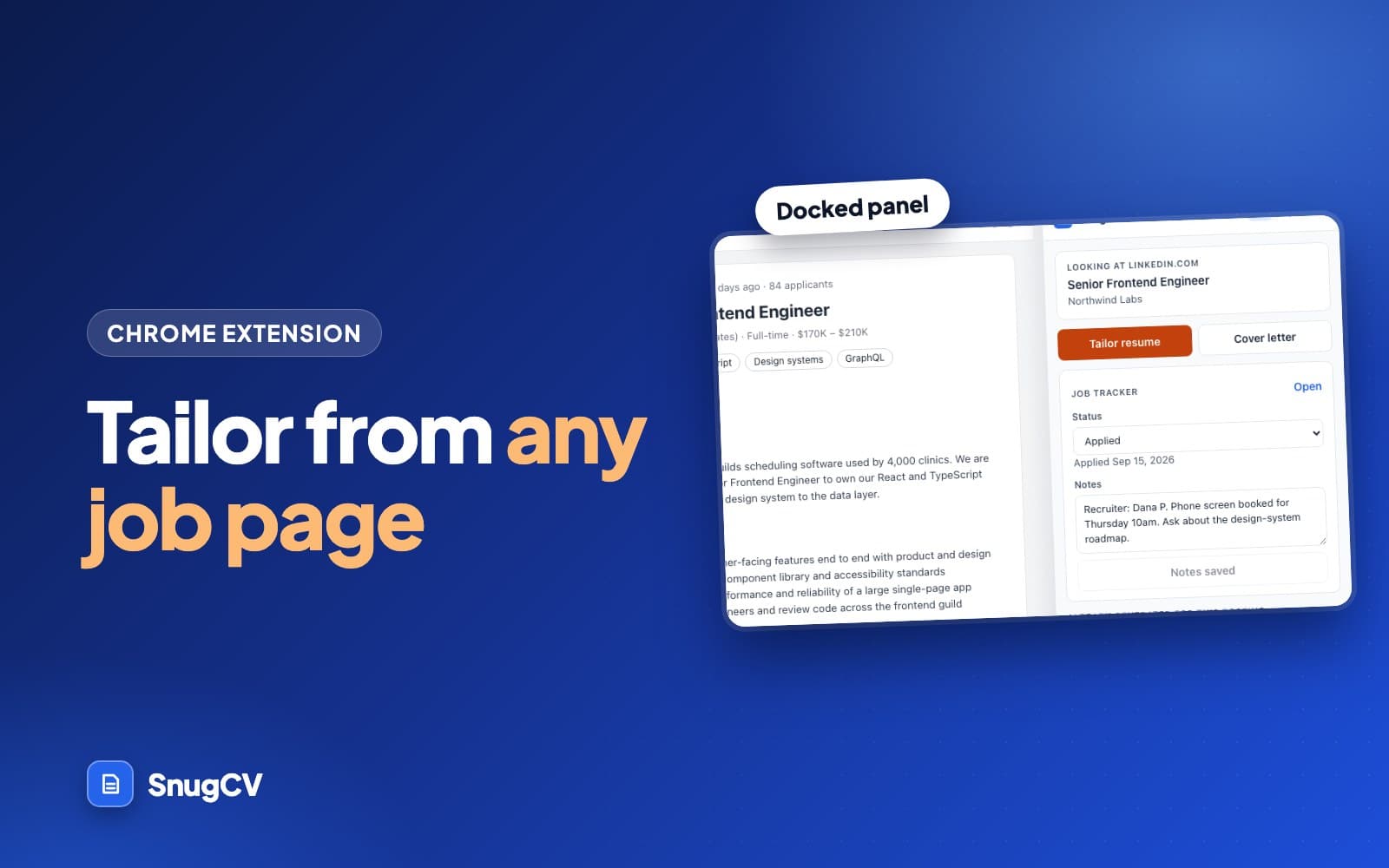
- The extension docks a panel beside the job posting and tailors your resume without copy and paste.
- The PDF downloads automatically when it is ready.
- Set a job status and keep notes from the same panel.
- The panel reads the posting in your browser. Posting text goes to SnugCV only when you tailor or track a job.
In this guide
- What the extension adds
- Install and connect
- Tailor from the job page
- What the panel reads from the page
- Search results pages and moving between jobs
- Where it appears
- What else the panel does
- What to expect on different kinds of pages
- When something does not show up
- What the extension can see and send
- A routine for a search session
- Next step
Copying a job description, switching tabs, pasting it and waiting is a lot of friction when you are looking at twenty postings. The SnugCV Chrome extension removes it. It puts a panel beside the job page, reads the posting for you and tailors your resume in place.
This guide covers the whole path: connecting the extension, tailoring from a posting, what the panel reads and from where, the other tools in the panel, and what to check when something does not show up. If you would rather paste a posting into the web app, how to tailor your resume to a job posting in about a minute covers that route.
What the extension adds
The extension does not tailor any differently from the web app. Both run the same tailoring against the same saved profile and spend the same credits. What changes is where you work and how much you do by hand.
| Task | Web app | Extension |
|---|---|---|
| Getting the posting in | You copy the description and paste it | The panel reads it from the page |
| Title, company and link | Detected from the text, or typed into optional fields | Taken from the page, with the link |
| The result | The document opens in the app | The PDF downloads, and the panel links to the document |
| Job tracker | A row for every posting you tailor for | The same, plus status and notes in the panel |
| Cover letter | One credit on the free plan | The same, from the panel |
| Autofill and saved answers | Not available | Pro, on application forms |
Use the web app when a posting reaches you in an email or a document. Use the extension when you are browsing job boards, because the posting, the buttons and the tracker are all on one screen.
Install and connect
- Install the extension from the Chrome Web Store. It is free.
- Sign in to SnugCV in the same browser.
- In SnugCV, open Settings and find Browser extension. Choose Connect this browser.
Connecting gives the extension a private token for that device. Your password is never typed into the extension, and you can revoke access from the same Settings card. The card shows how many devices are connected and has a Disconnect all button. Sign out at the bottom of the panel disconnects the browser you are using.

If the panel shows Connect extension where the buttons should be, this browser has not been connected yet, or the connection was revoked. Choose it and follow the same steps.
Before the first tailor
0 of 3 done
The profile is the one thing to get right before anything else. The panel tailors from the same saved profile as the web app and does not read a PDF each time. If you have not built yours, start with how to upload your resume and build a reusable profile.
Tailor from the job page
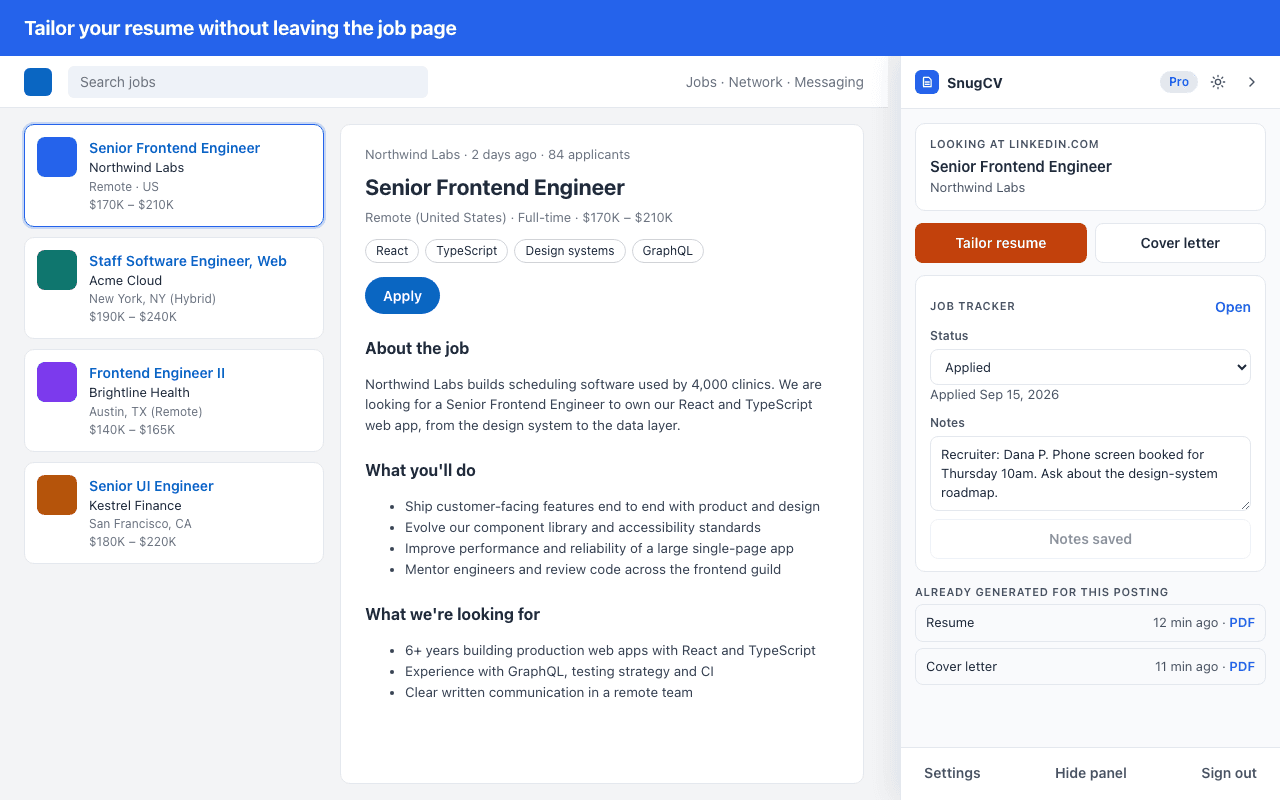
Open a job posting. The panel docks beside it and shows the job title and company it found.
- Choose Tailor resume in the panel.
- Wait about a minute. A badge on the toolbar icon shows that it is working.
- The PDF downloads automatically when it is ready, and the panel shows Resume ready.
- Choose Open in SnugCV to see the document with its keywords, gaps and change notes.
While it works, the panel lists three stages: reading the posting, tailoring and saving. You can keep browsing. The badge on the toolbar icon turns into a check mark when the resume is ready and an exclamation mark if something went wrong. The PDF goes to your downloads folder, and if the automatic download fails the panel gives you a Download PDF button instead.
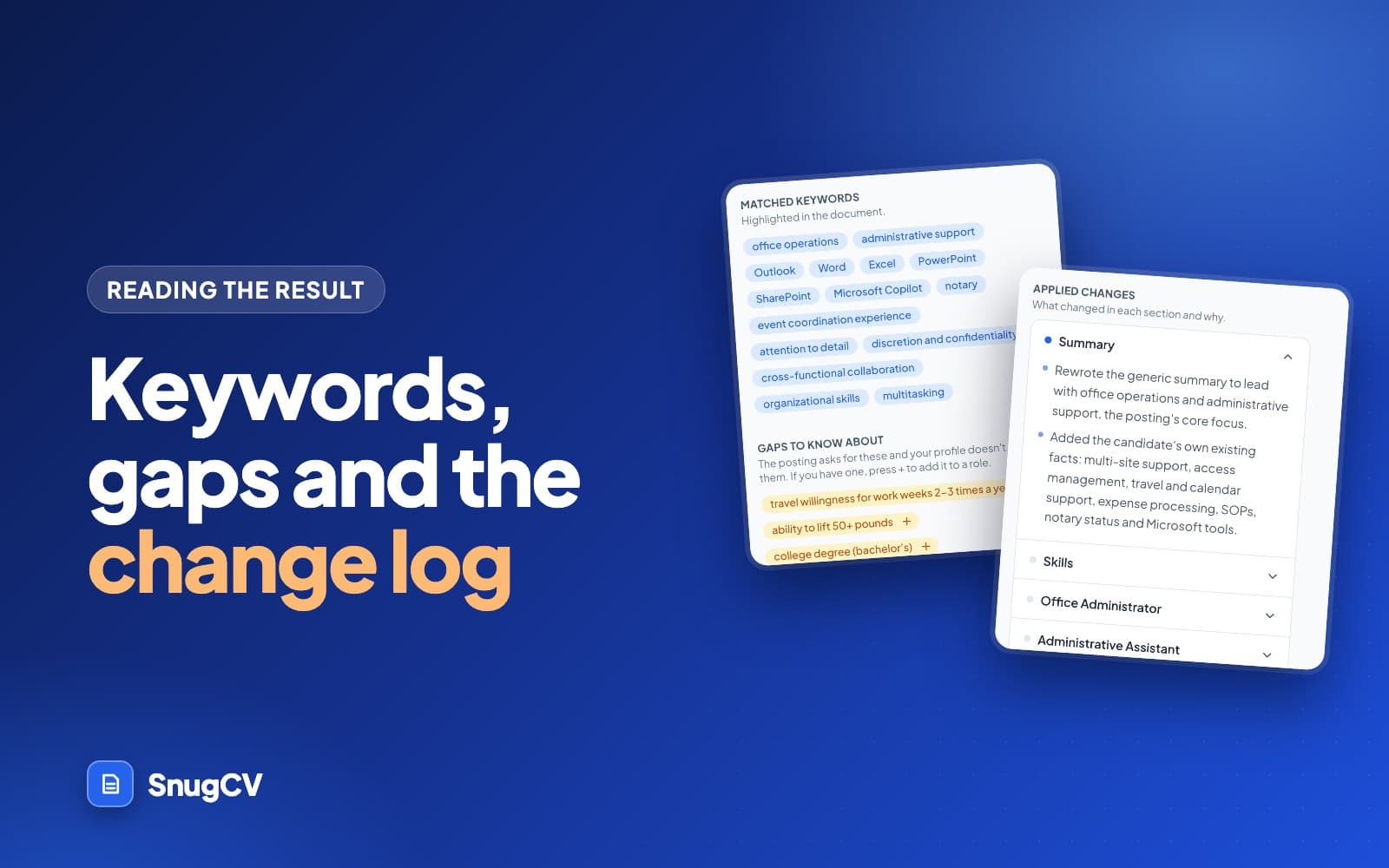
What you get is the same as from the web app: a summary written for the role, skills reordered, bullets reworded in the posting's language and a plain-language note for every change. Employers, titles, dates and education are copied unchanged. How to read your tailored resume explains the keywords, gaps and change notes on the document page.
About a minute
from Tailor resume to a finished PDF
1 credit
per tailored resume, on the free plan
6 sites
where the panel docks without a click
On the free plan each tailored resume uses one credit, the same as in the web app. Free accounts start with 5, and Pro includes unlimited tailoring within a fair-use limit of 125 a month. Tailoring the same posting a second time makes a new document, uses another credit and reuses the same job in your tracker, so open the existing document first if you only want to look at it again. SnugCV credits and Pro lists what uses a credit and what is always free.
What the panel reads from the page
When a posting is open, the panel reads four things: the job title, the company, the full description and the page address. It shows the title and company so you can see it found the right job before you spend a credit.
How it reads depends on the page. The extension has a reader for the layouts of LinkedIn, Indeed, Glassdoor, Greenhouse, Lever and Workday. On any other page it looks for the structured job data that many careers sites include, and when there is none it takes the largest block of text on the page. That is why a company's own careers page usually works, and why an unusual page can occasionally pick up the wrong text. A glance at the title and company in the panel tells you which you got.
- 1
indeed.com
Looking at
The site the posting was read from. If it is not the page you meant, you are on the wrong tab.
- 2
Scheduling Coordinator
Job title
Read from the page. It becomes the job's title in your tracker, and you can edit it there.
- 3
Cedar Valley Family Health
Company
Read from the page. When the page does not give one, it is worked out from the posting text.
- 4
Two buttons under the job card
Tailor resume and Cover letter
Cover letter writes a letter for the same posting. On the free plan it uses one credit, like a resume.
- 5
Status, applied date and notes
Job tracker
Syncs with the Job Tracker in your dashboard.
- 6
Resume, 12 min ago, PDF
Already generated for this posting
The documents you already made for this page, newest first, with a PDF link on each.
The example in the figure is made up. The reading happens in your browser, and the posting's text is sent only when you choose Tailor resume, Cover letter or Track this job.
Search results pages and moving between jobs
Job boards usually show a list on the left and the open job on the right. The panel follows the job that is open. Click another job in the list and the panel switches to it, with the new title and company, without a page reload.
Different links to the same posting are treated as one job. A LinkedIn search page that carries the open job in its address, an Indeed results page with a selected job and the posting's own page all resolve to the same posting. Tracking parameters in the address are ignored. A Lever posting and its apply page count as one job too. In practice this means the list of documents under Already generated for this posting and your tracker entry line up, wherever you reached the job from.
Where it appears
The panel docks on LinkedIn job pages, Indeed, Glassdoor, Greenhouse, Lever and Workday by default. Elsewhere, it appears when it has a reason to.
| Where you are | What happens |
|---|---|
| LinkedIn job pages, Indeed, Glassdoor | The panel docks by itself and shows the posting you have open |
| Greenhouse, Lever and Workday | The panel docks on postings and on their application pages |
| A company careers page | The panel appears once the page shows an application form that takes a resume |
| Any other page | Click the extension icon in the toolbar to open the panel. Click again to collapse it |
| Chrome's own pages and the Web Store | These pages cannot host the panel, so the icon opens a small popup with the same buttons |
The panel sits beside the page and pushes the content over, so it does not cover the posting. The chevron at the top collapses it to a small tab on the edge of the page. Drag the tab up or down and it stays where you put it. Whether the panel is open or collapsed is shared across your tabs. Hide panel at the bottom switches it off on job sites until you click the toolbar icon again, and the theme button at the top cycles between system, light and dark.
What else the panel does
- Cover letter writes a matching letter for the same posting. On the free plan it uses one credit, like a resume. See how to write a tailored cover letter.
- Job tracker lets you set a status, see the applied date and keep notes for the job, even on a company's "thanks for applying" page. Everything syncs with the tracker in your dashboard. See the job tracker guide.
- Track this job adds a posting to the tracker without tailoring anything, which suits jobs you apply to with your resume as it is.
- Already generated for this posting lists the resume and cover letter you already made for the page, with a PDF link for each.
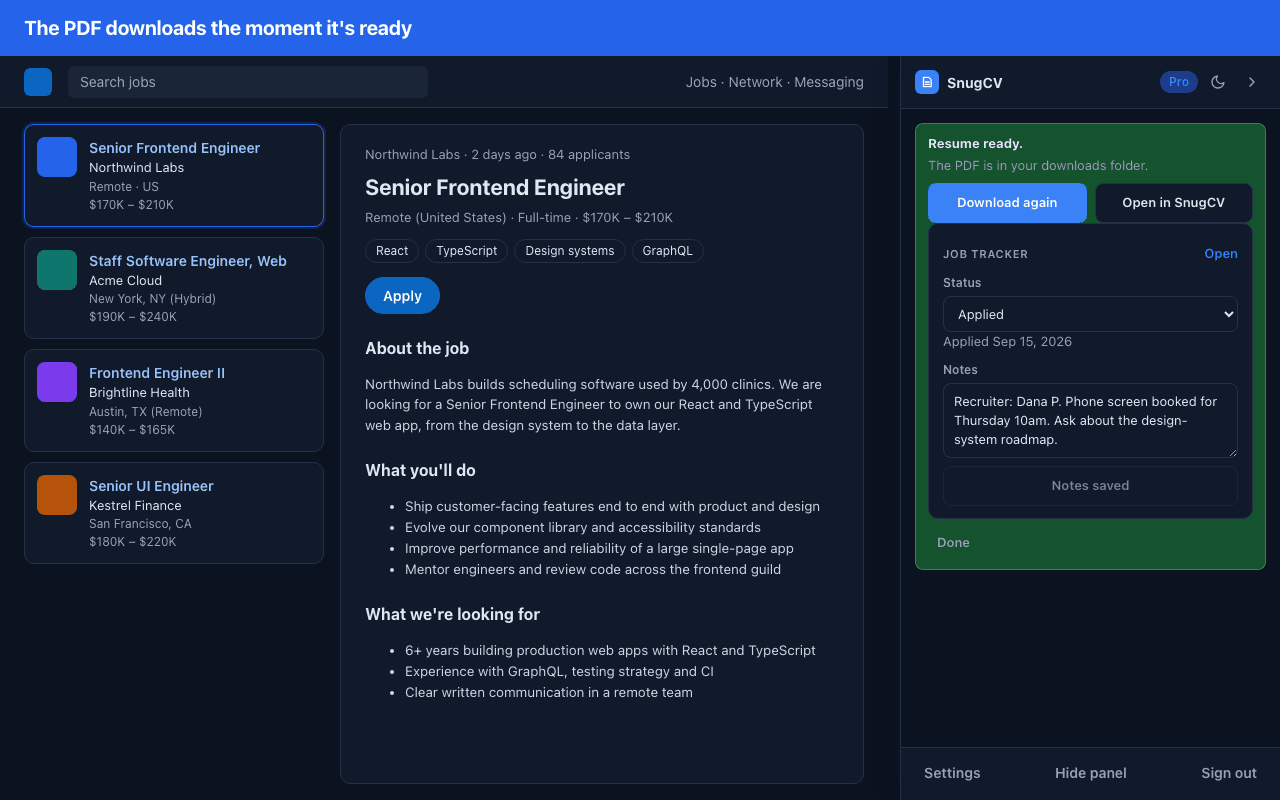
The status list in the panel matches the tracker: Applied, Screen, Interviewing, Offer, Withdrawn, Ghosted, Rejected and Accepted. A job you have not applied to yet shows as Not applied yet. When you submit an application form on a page where the extension is active, the job is marked as Applied for you and added to the tracker if it was not there.
What to expect on different kinds of pages
Postings do not all live in the same kind of place. The table below uses made-up postings from several fields to show what the panel does on each kind of page.
| Page | Made-up example | What the panel does |
|---|---|---|
| LinkedIn job search | Shift supervisor at a home goods chain | Reads the job open in the detail pane and switches when you click another |
| Indeed search results | Warehouse associate at a distribution company | Follows the selected job |
| Glassdoor | Dental front desk coordinator | Reads the job in the details pane |
| Greenhouse job board | Product designer at a software company | Docks on the posting and on its application form |
| Lever posting | Customer success manager at a startup | Treats the posting and its apply page as the same job |
| Workday careers site | Registered nurse at a hospital system | Docks on the posting. Application forms differ from one employer to the next |
| A city's own careers page | Library assistant | Appears when it finds an application form, or when you click the icon. Reads structured job data if the page has it, otherwise the largest block of text |
| A posting in an email or a document | Bookkeeper at a small firm | There is no page to read, so paste the text into the web app |
When something does not show up
Most problems come down to the panel not having a posting to read, or not being allowed to do something yet. Find the message you see and the usual cause.
| What you see | Usual cause | What to do |
|---|---|---|
| No panel on a job page | It is collapsed to an edge tab, hidden, or the tab was open before you installed | Click the edge tab or the extension icon, or reload the page |
| No job posting found here | A list page with no job open, or the posting is still loading | Open one posting and give it a few seconds |
| Tailor resume is grayed out | No posting found, profile not ready, or no credits left | Read the notice above the buttons |
| Your profile needs a name and at least one role | The profile is empty | Upload your resume and save the profile |
| You've used your credits | The free credits are spent | Buy a credit pack, invite friends for more credits, or upgrade to Pro |
| Connect extension | Never connected, signed out, or the device was revoked | Choose it and connect again |
| A document is already being generated | One document is written at a time | Wait for the first one to finish |
| The automatic download did not go through | The browser refused or interrupted the download | Use Download PDF in the panel, or the Documents page |
| Wrong company or title | The page layout is unusual | Edit the job's details in the tracker |
If a generation fails, the document page says so and says the credit was refunded. If the same posting keeps failing, paste it into the web app and tailor from there, which uses the same pipeline.
What the extension can see and send
Chrome describes the extension's access as reading and changing your data on all websites. The reason is practical. Application forms live on thousands of company sites, and many sit in a frame inside the employer's own page, so the extension has to be able to run on those pages to recognize a form at all.
| Permission | Why it is needed |
|---|---|
| Access to all websites | Recognize postings and application forms, including forms inside frames on company sites |
| Scripting | Read the posting, and reach the form in the right frame when you autofill |
| Active tab | Read the posting on the tab you have open when you use the toolbar popup |
| Storage | Keep your connection, panel position and settings on your device |
| Downloads | Save the finished PDF to your downloads folder |
Local
Stays in your browser
- Recognizing postings and application forms
- Reading the posting text, until you tailor or track
- Filling in an application form
- Your panel position, theme and settings
When it happens
Sent to SnugCV
- The page address, while the panel is shown on a job page, to find your documents and tracker entry for that job
- The title, company and description, when you choose Tailor resume, Cover letter or Track this job
- Your answers to application questions, only when you choose to save them
The list of job sites and the rules for recognizing forms are downloaded from snugcv.com as data and carry nothing about you. The extension does not collect your browsing history and does nothing on pages that are not job postings or application forms.
A routine for a search session
The panel is quick enough that it is easy to tailor for everything you open. A short routine keeps your credits and your attention for the roles that matter.
- 1
Open results
Browse a search page without tailoring anything yet.
- 2
Check the card
Open a posting and confirm the title and company in the panel.
- 3
Decide
Read the requirements. Skip it if it is not a role you would take.
- 4
Tailor
Choose Tailor resume and keep browsing while it runs.
- 5
Read it
Open in SnugCV and read the keywords, gaps and change notes.
- 6
Apply and log
Send the application, set the status and add a note.
Step 3 is easy to skip. The requirements list tells you quickly whether you meet most of the must-haves, and how to find the keywords in a job description shows a way to sort them. A tailored resume is only as honest as the profile behind it, so a role you do not fit shows up as gaps, and no skill is invented to cover them. Why tailor a resume for each job covers when the effort is worth it.
Do
- Tailor only for postings you would really apply to
- Check the title and company in the panel before you tailor
- Read the change notes and the gaps before you send the PDF
- Set the job to Applied when you apply, and add a line to the notes after each call or email
- Fix a wrong fact once in your profile, so every later resume has it right
Avoid
- Tailor every posting you open just in case
- Send a PDF you have not read
- Tailor from a list page before a job is open in the detail pane
- Leave statuses unset, so the tracker cannot tell you what needs a follow-up
- Edit one document to correct a fact that belongs in the profile
Next step
If you have Pro, the extension can also fill in the application form. Read how to autofill job applications. To read or change what you tailored, see how to edit your tailored resume and download it as a PDF.
Questions people ask
Which sites does the panel appear on?
It docks on LinkedIn, Indeed, Glassdoor, Greenhouse, Lever and Workday without a click. On other sites it appears on pages that have an application form which takes a resume, and on any page when you click the SnugCV icon in the toolbar. On every other page the extension stays out of the way.
Is the extension free?
Yes, it is free to install. Tailoring from the extension uses the same credits as the web app, so a free account can tailor its first 5 resumes from a job page. A cover letter uses one credit, like a resume, and autofill needs Pro. The job tracker in the panel is free on every plan.
Does it collect my browsing history?
No. The extension recognizes job postings and application forms in your browser and does not send the pages you visit to SnugCV. On a job page where the panel is shown, it sends the page address so SnugCV can find documents you already made for that job. Posting text is sent only when you tailor or track a job.
Can I hide the panel?
Yes. Collapse it to a small tab at the edge of the page and drag the tab up or down to where you want it. You can also choose Hide panel at the bottom of the panel to hide it on job sites. Click the SnugCV icon in the toolbar to bring it back.
What do I do if the panel says it found no job posting?
Open a single posting rather than a list or a search page, and give it a few seconds to finish loading. On company sites with an unusual layout, click the SnugCV icon once the posting text is on screen. If it still finds nothing, paste the posting into the web app and tailor from there.
Does the extension write a different resume from the web app?
No. Both run the same tailoring from the same saved profile and spend the same credits. The difference is how the posting gets in. The panel reads it from the page, saves the link and adds the job to your tracker, and the PDF downloads for you when it is ready.
Was this guide helpful?
Get the free resume checklist and new guides
Twenty checks to run before you send a resume, as a one-page PDF. After that, a short email when new guides go up, at most once a week.