Key takeaways
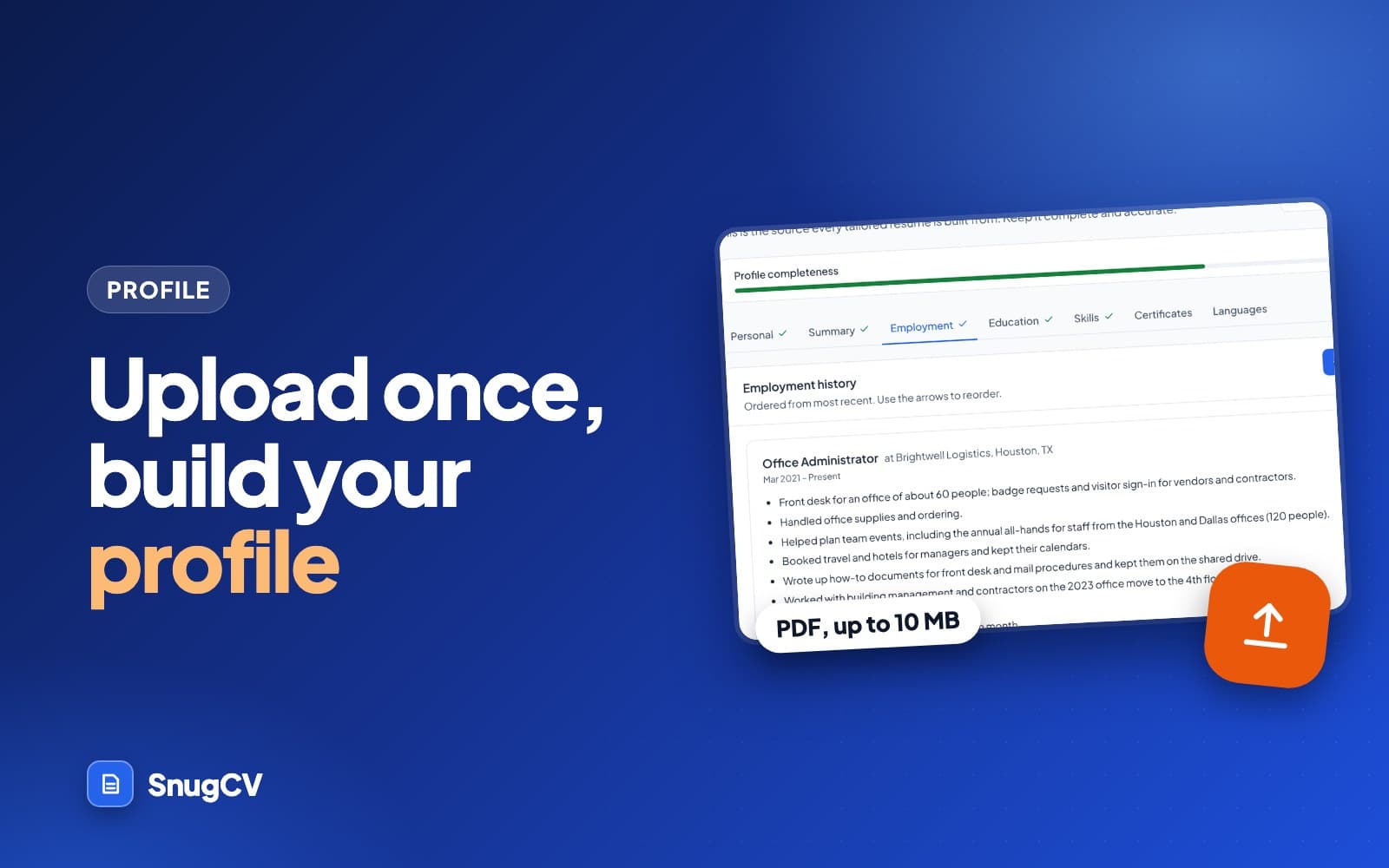
- Upload a PDF once and SnugCV fills in a profile that you review and save.
- Every tailored resume is built from this profile, so check your dates, titles and skills before you save.
- SnugCV rewords what your profile says and never adds to it, so put real detail into the achievements.
- Saving a new upload replaces your current profile. Edit a single tab when the change is small.
In this guide
Every resume SnugCV writes starts from your profile. You build it once, from the resume you already have, and every tailored version after that draws on it. This guide covers the upload, what the profile holds, what to check before you save, and how to keep the profile accurate while your search goes on.
The upload takes under a minute. The review is where the time goes, and it is time well spent: a date or a job title that is wrong in the profile is wrong in every resume you generate afterwards. If you want the case for tailoring at all, start with why tailor a resume for each job.
The only file type the upload accepts
10 MB
The largest file it takes
20 to 40 sec
How long reading usually takes
7 tabs
Sections you review and edit afterwards
What the profile is
The profile is a structured copy of your resume: your contact details, summary, jobs, education, skills, certificates and languages, each in its own section. SnugCV can reword your summary, reorder your skills and rephrase your bullets for a posting, but employers, titles, dates and education come from the profile unchanged. So the profile is where your facts live, and it is worth getting right.
Each section has its own tab, and each tab behaves differently when a resume is tailored.
| Tab | What it holds | What tailoring does with it |
|---|---|---|
| Personal | Name, email, phone, location, links | Copied unchanged to the top of every resume |
| Summary | A short paragraph about you | Rewritten for each posting |
| Employment | Each job with title, company, dates and achievements | Titles, companies and dates copied unchanged. Achievements reworded |
| Education | Degrees, schools and years | Copied unchanged |
| Skills | One skill per line | Reordered by relevance to the posting. None added |
| Certificates | Licenses and certifications | Copied unchanged |
| Languages | Each language and your level | Copied unchanged |
The last column is the reason the review matters. Everything in a row marked "copied unchanged" goes into every resume exactly as written, typos included.
Prepare the PDF before you upload
The upload reads the text of your PDF first. A PDF exported from Word, Google Docs, Pages or a similar program contains real text, and that is the best starting point. A quick test: open the file and try to select a line with your cursor. If it highlights, the text is there. If you cannot select anything, the file is a picture of a page, which is what a scan or a phone photo saved as PDF gives you.
When a PDF has little or no readable text, the file itself goes to the AI service the app uses, which reads it as an image. That works. You should still check the result more carefully, because a picture of text is harder to read exactly than text is.
Helps the reader
- Export a PDF from the program you wrote the resume in
- Use plain section headings such as Experience, Education and Skills
- Keep each job's title, employer and dates together
- Write one achievement per line
- Write dates in one style all the way through
Makes it harder
- Scan a printout when you still have the original file
- Show skills as bars or rating dots with no words beside them
- Use sidebars and text boxes that mix up the reading order
- Join several documents into one PDF
- Save the file as a very large export full of embedded images
None of these is enforced. They are habits that make a PDF easier for any program to read in the order you meant. If you have no resume file yet, the upload page has a Fill in your profile manually link under the drop area, which takes you to the profile tabs.
Upload your resume, step by step
- 1
Open the upload page
My profile, then Re-upload resume. New accounts arrive here automatically.
- 2
Drop in the PDF
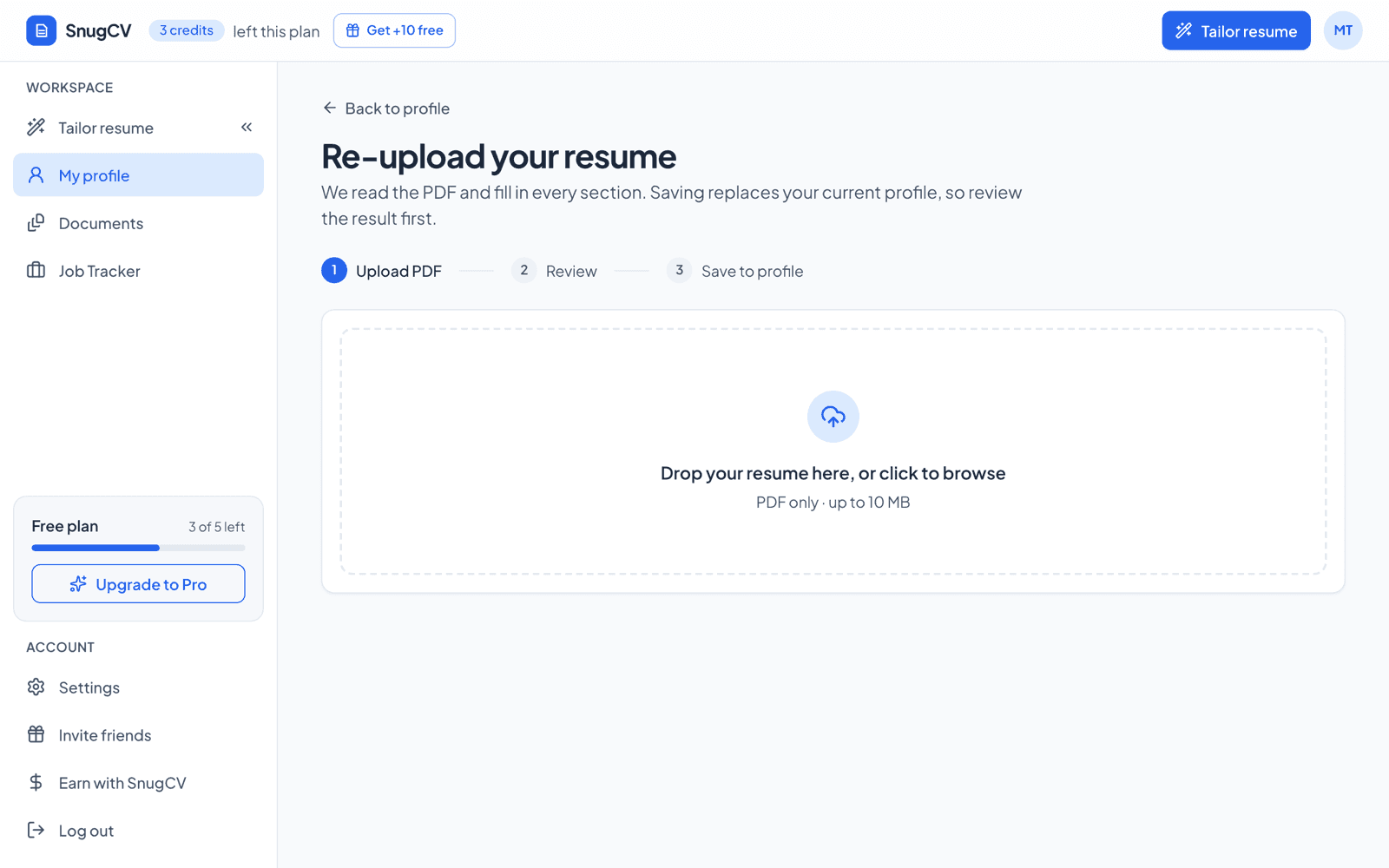
Drag it onto the box or click to browse. PDF only, up to 10 MB.
- 3
Wait for the read
Usually 20 to 40 seconds. Keep the tab open.
- 4
Review and save
Check what was found, then choose Save to my profile.
- Open My profile and choose Re-upload resume. New accounts land on the upload page automatically. If your profile has no jobs yet, the profile page shows an Upload resume button in its place.
- Drop your resume onto the upload area, or click to browse. The upload accepts PDF files up to 10 MB.
- Wait while the file is read and each section is filled in. The page says what it is doing: reading your PDF, finding your roles and dates, then extracting skills and education.
- Review the result, make any corrections, and save it to your profile.
Your first 5 tailored resumes are free, and uploading a resume and building the profile does not use any of them. The full list of what uses a credit is in SnugCV credits and Pro.
What the review step shows
When the read finishes you see a card headed What we found in and your file name. It lists your personal details, the start of your summary, each job with its company and dates, each degree, your skills, your certificates and your languages. A section with nothing in it says Nothing found.
The review shows a summary of the profile and leaves out the bullet points under each job. Those appear on the Employment tab once you save, so plan to read them there.
Before you choose Save
0 of 6 done
The button reads Save to my profile on a first upload and Replace my profile when you already have one. Upload a different file throws this read away and takes you back to the drop area.
Check each tab after you save
Saving shows a confirmation and takes you to the Tailor page. Open My profile in the sidebar to check each tab. Seven tabs run across the top: Personal, Summary, Employment, Education, Skills, Certificates and Languages. A completeness bar shows how much of the profile is filled in, and a tick appears on each tab you have finished.
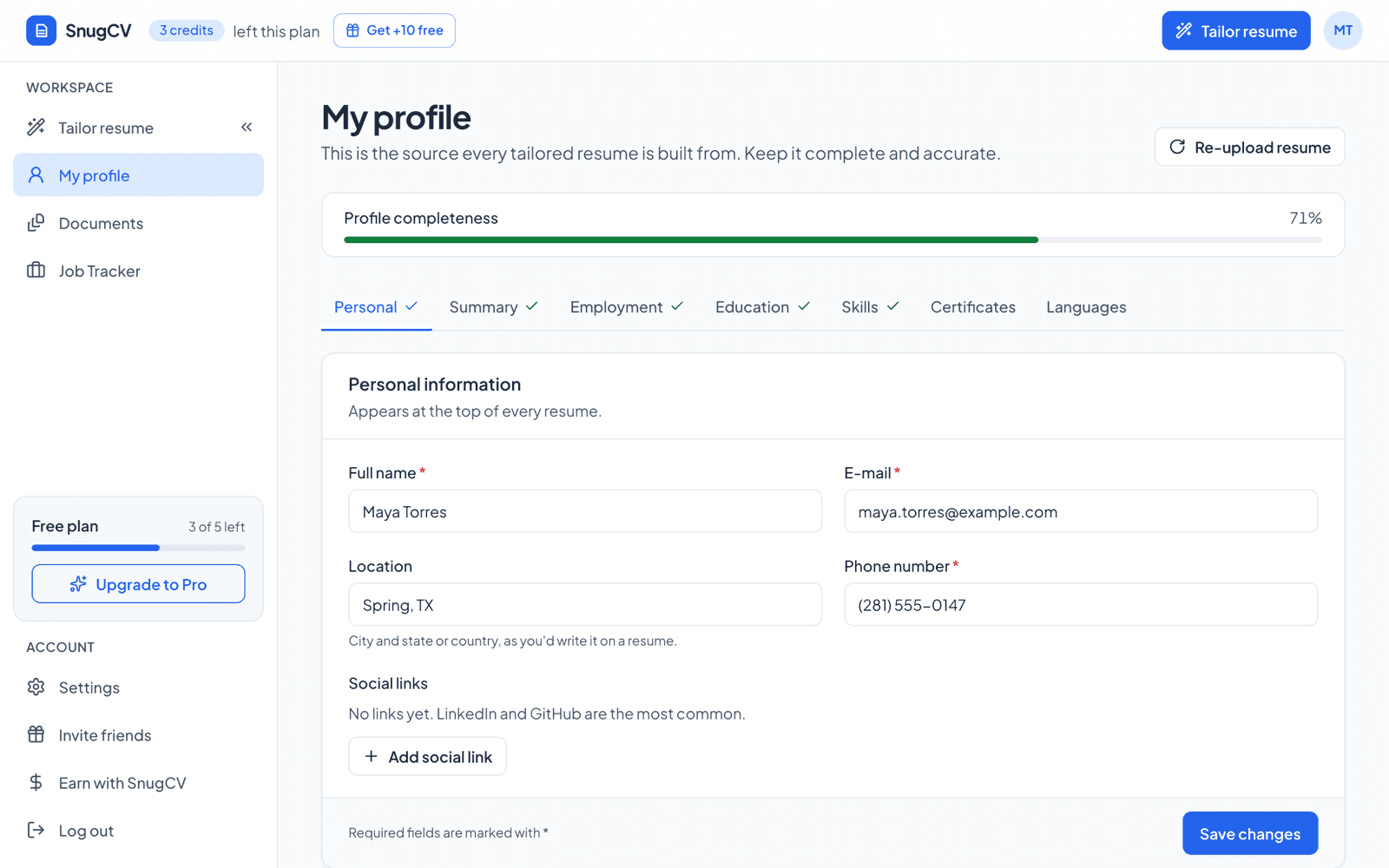
The bar counts all seven tabs, including Languages, which the app marks as optional. A profile that is complete for your field may therefore sit below 100 percent, and that is fine. What the tailoring needs is your name and at least one job. The form for adding a job says tailoring works best with at least two.
Go through the tabs in order and look for the things a PDF reader tends to get wrong: dates and job titles on the Employment tab, which are copied into every resume as they are, bullets that were cut short or merged with the next job, skills that were missed or that sit in the wrong place, and contact details that are out of date.
Personal
Name, email and phone are required, and the tab only gets its tick when all three are filled in. Add a location the way you would write it on a resume, such as a city and state. Links are optional. Choose the platform from the list (LinkedIn, GitHub, X, Portfolio, Blog, Facebook, Instagram, YouTube, Dribbble or Behance) and paste the address. They print under your name and are clickable in the PDF.
If your resume had no email, your account email is used, so the profile always has one. Check the phone number digit by digit, and open each link once to make sure it still goes where you expect.
Summary
Write three or four sentences about who you are professionally. The tailoring rewrites this paragraph for every posting, so the profile version should say what stays true across the roles you apply for. The counter under the box suggests staying under 450 characters.
Before
Looking for a front office manager role at a medical group where I can use my scheduling skills.
After
Front desk and office professional with six years in busy medical and dental offices. Experienced in scheduling, insurance verification and patient communication, and comfortable training new staff.
Made-up example. The first version states what you want, which only fits one posting. The second states what you have, which can be aimed at any posting that asks for it.
Employment
This tab decides how good your tailored resumes are. Each job has a title, a company, a date range and a list of achievements. Choose Add role to add a job, the pencil to edit one, and the arrows to move it up or down. Keep the most recent job first.
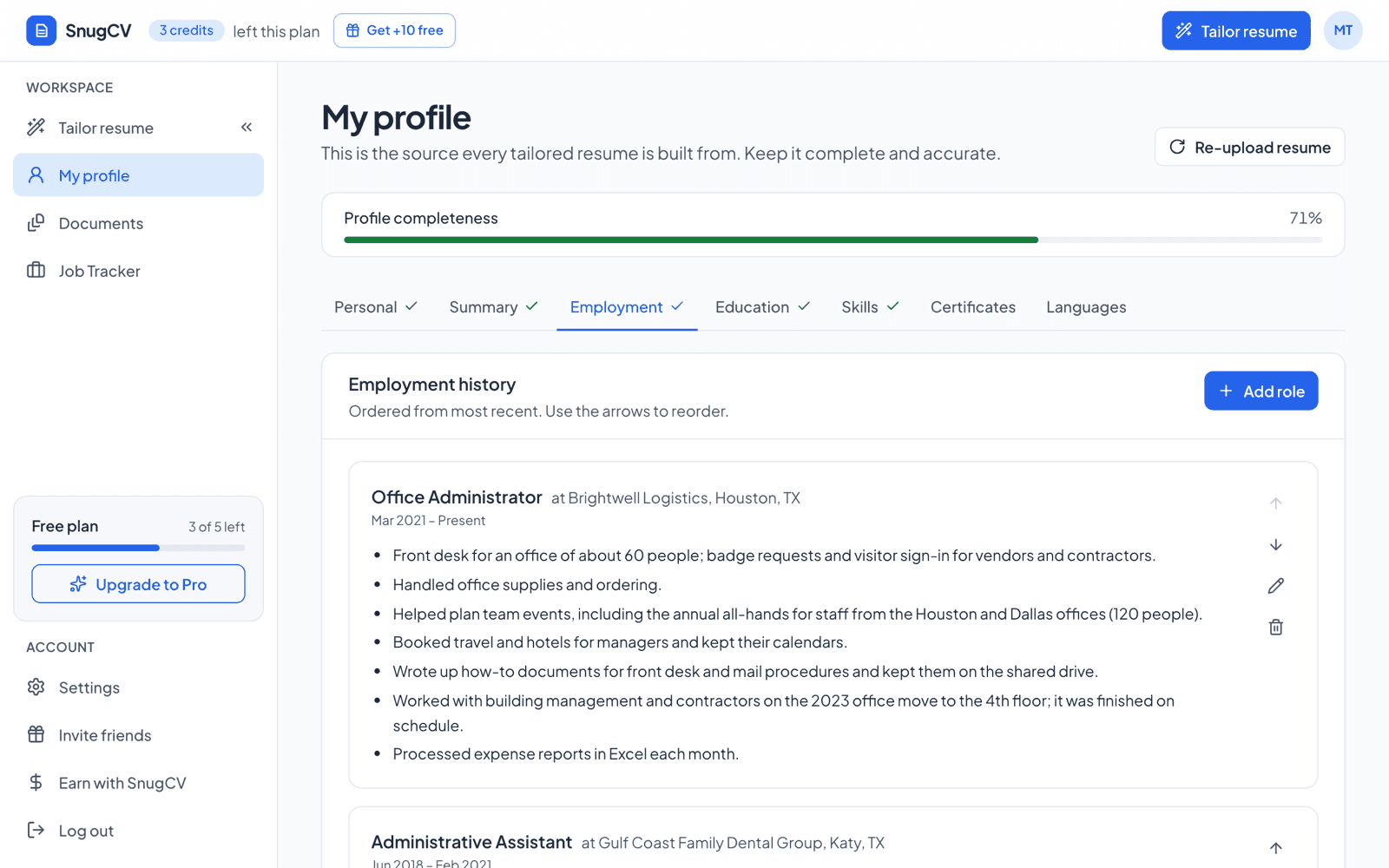
In the Achievements box, write one achievement per line. Bullet characters are stripped for you, so typing them does no harm. The form's own hint is to start with a verb and include numbers where you can.
Tailoring never gives a job more bullets than you wrote for it. A role with two achievements comes back with two, or fewer, unless you add one yourself. Detail you leave out of the profile cannot appear later, and that makes this tab the place to be generous with true specifics.
Before
Responsible for customer service.
After
Served about 80 customers a shift at a hardware store counter, from special orders to returns.
Made-up example. The second line gives a tailored resume something concrete to reword. Use numbers you can back.
Before
Helped with patient care on the unit.
After
Gave scheduled medications, charted vital signs and updated care plans for six to eight patients per shift on a medical-surgical unit.
Made-up example. Each clause is a separate fact, so a posting that mentions charting or care plans can find it.
Before
Did deliveries.
After
Completed 25 to 30 scheduled drops per route, checked loads against the manifest and logged proof of delivery.
Made-up example. Volume, a check and a record give a dispatcher something to verify.
Several titles at one employer
If you were promoted inside one company, keep it as one employment entry with several titles. In the role form, choose Promoted here? Add more titles at this company. The date range then becomes your total time at the company, and each title gets its own dates, most recent first. You need at least two titles. Removing down to one switches the entry back to a single title.
- 1
Harbor Street Pharmacy
Company
Shown once, in bold, with the total time at the company on the right.
- 2
2016 to 2024
Total time
Enter the whole stay in the date range box.
- 3
Pharmacy Manager, 2021 to 2024
Newest title
Listed first. The job entry's main title mirrors this one.
- 4
Lead Technician, 2018 to 2021
Earlier title
Each title carries its own dates.
- 5
Pharmacy Technician, 2016 to 2018
First title
Achievements go in one box for the whole stay.
Education, skills, certificates and languages
Degree required
Education
Add the degree or program name. The school is optional, and so are the years: the form says to leave them blank if you would rather not show dates.
One per line
Skills
Press Enter to add another line. Keep each entry short, the way a posting would write it. Tailoring reorders the list for each posting and may leave off skills that clearly do not apply to that posting. It never adds one.
As written on the certificate
Certificates
List licenses and certifications exactly as they appear on the certificate. They are copied unchanged into every resume, so spelling and capitals matter.
Optional
Languages
Add a language only if it helps your applications. Describe your level in your own words, such as Native, Fluent or Professional working proficiency, and keep it true.
A longer list of specific skills gives the tailoring more to reorder than a short list of broad ones. To choose the words, see how to find the keywords in a job description.
Fix what the read got wrong
Reading a PDF is not exact. A PDF stores where each word sits on a page, and the order the words belong in is worked out from that layout. Anything laid out in an unusual way can come back slightly wrong. That is the reason there is a review step.
| If you see | Do this |
|---|---|
| A job is missing | Choose Add role on the Employment tab and enter it by hand |
| Two jobs came back as one, or one job as two | Edit the entry, or delete the extra one and add the right one |
| A promotion shows as separate jobs | Merge them into one entry with several titles |
| Achievements run together on one line | Edit the role and put one achievement on each line |
| Skills are one long phrase | Open Skills and split them, one per line |
| A date range reads differently from your resume | Edit the role. Dates are copied as written, so fix them here once |
| Phone or email is blank or wrong | Edit the Personal tab |
If the upload stops with a message, this is what the messages mean.
| Message | What to do |
|---|---|
| Only PDF files are supported. Export your resume as a PDF and try again. | The file is not a PDF. Export or print to PDF from the program you wrote it in |
| That file is larger than 10 MB. Try exporting a smaller PDF. | Large images inside the file cause this. Export again without them |
| The AI service is busy. Please try again in a minute. | A temporary load problem. Wait, then upload the same file again |
| The resume is too long to parse in one pass. | Upload a shorter version, such as the resume without a long publications list, and add the rest on the tabs by hand |
| Could not read a profile from this document. | Export a fresh PDF from the original file and try again. If that fails, fill in the tabs by hand |
Keep the profile accurate
A tailored resume can only use what the profile says. If a skill or a result is missing from your profile, it will not appear in your resume, and it will not be added for you. That is the point: nothing in a tailored resume is something you did not put there yourself. So when you remember a project you left off the original, add it to the profile once and every future resume can use it.
Edits to the profile apply to the resumes you tailor from then on. A resume you already made keeps the text it was made with.
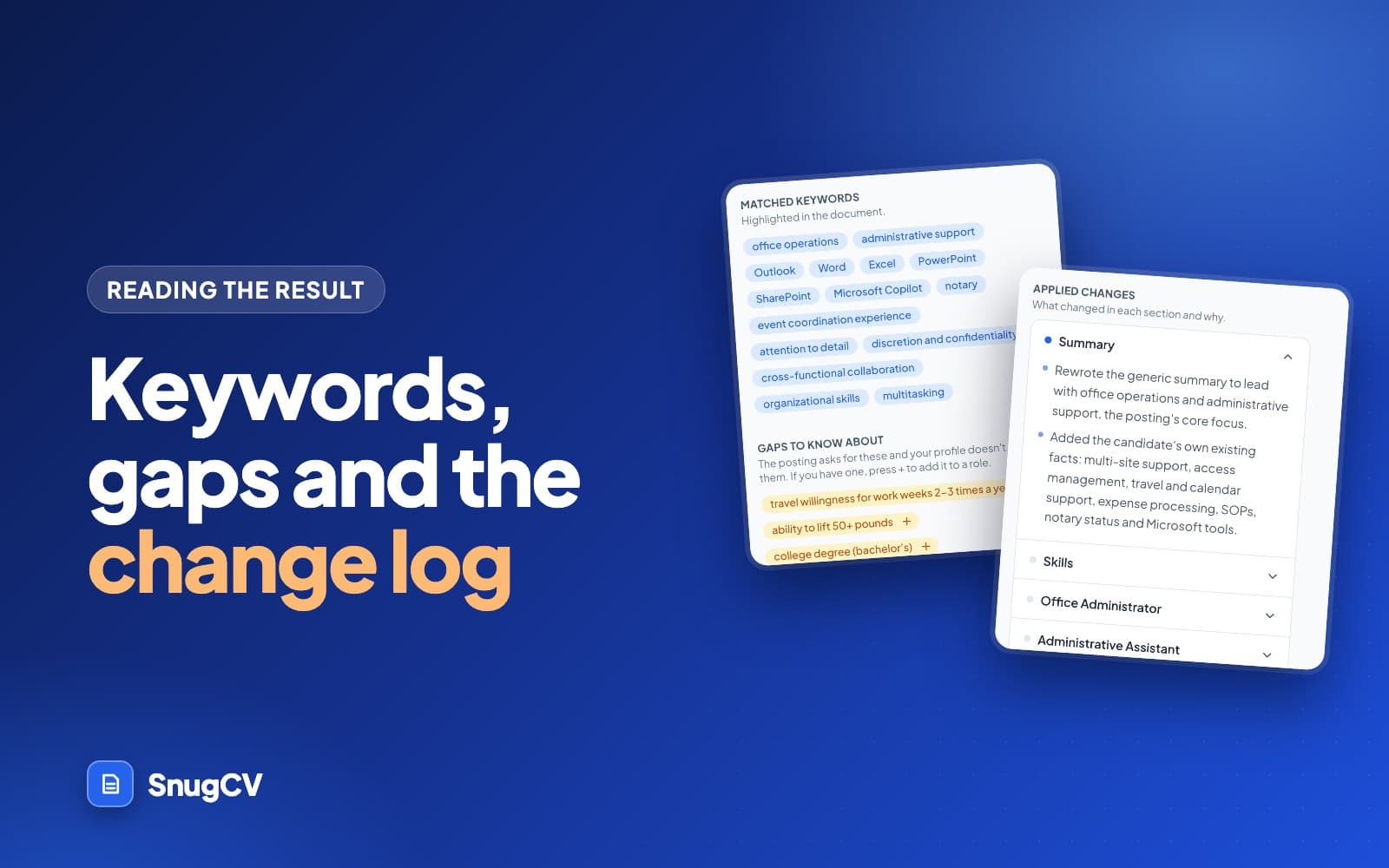
The gaps list on a tailored resume is a useful to-do list for the profile: it shows what a posting asked for that your profile did not show. How to read your tailored resume explains it.
Day one
Upload, review every tab, fix what the read got wrong and save.
After your first tailored resume
Note what the gaps list asked for. Add anything that is true and was missing.
When something changes
New job, promotion, certificate: edit the tab the same week, while you still remember the numbers.
Before a new search
Read the profile as a stranger would. Refresh the summary and cut skills you no longer use.
Re-upload or edit a tab
When your situation changes, upload a newer PDF from the same page. Saving replaces your current profile, so read the review step carefully before you confirm. Small changes, such as a new job or a new skill, are easier to make by editing the relevant tab directly.
Replaces every section
Re-upload
Use it when you have rewritten your resume, changed fields, or need changes across several sections at once. Anything you added by hand that is not in the new PDF is gone afterwards, so put it in the PDF first or plan to enter it again.
Changes one section
Edit a tab
Use it for a new job, a new certificate, a corrected date or one reworded achievement. Nothing else in the profile moves.
Your file and your data
SnugCV keeps a copy of the PDF you upload in private storage tied to your account. To read it, the text is sent to the AI service used for reading and tailoring, or the file itself when there is no readable text. SnugCV's privacy policy lists the providers involved and says the AI provider does not use these requests to train its models.
The structured profile is saved only when you choose Save. You can delete a single role, degree or language from its tab, with a confirmation first, or delete your whole account from Settings, which removes your profile, resumes, cover letters, jobs and saved answers.
Next step
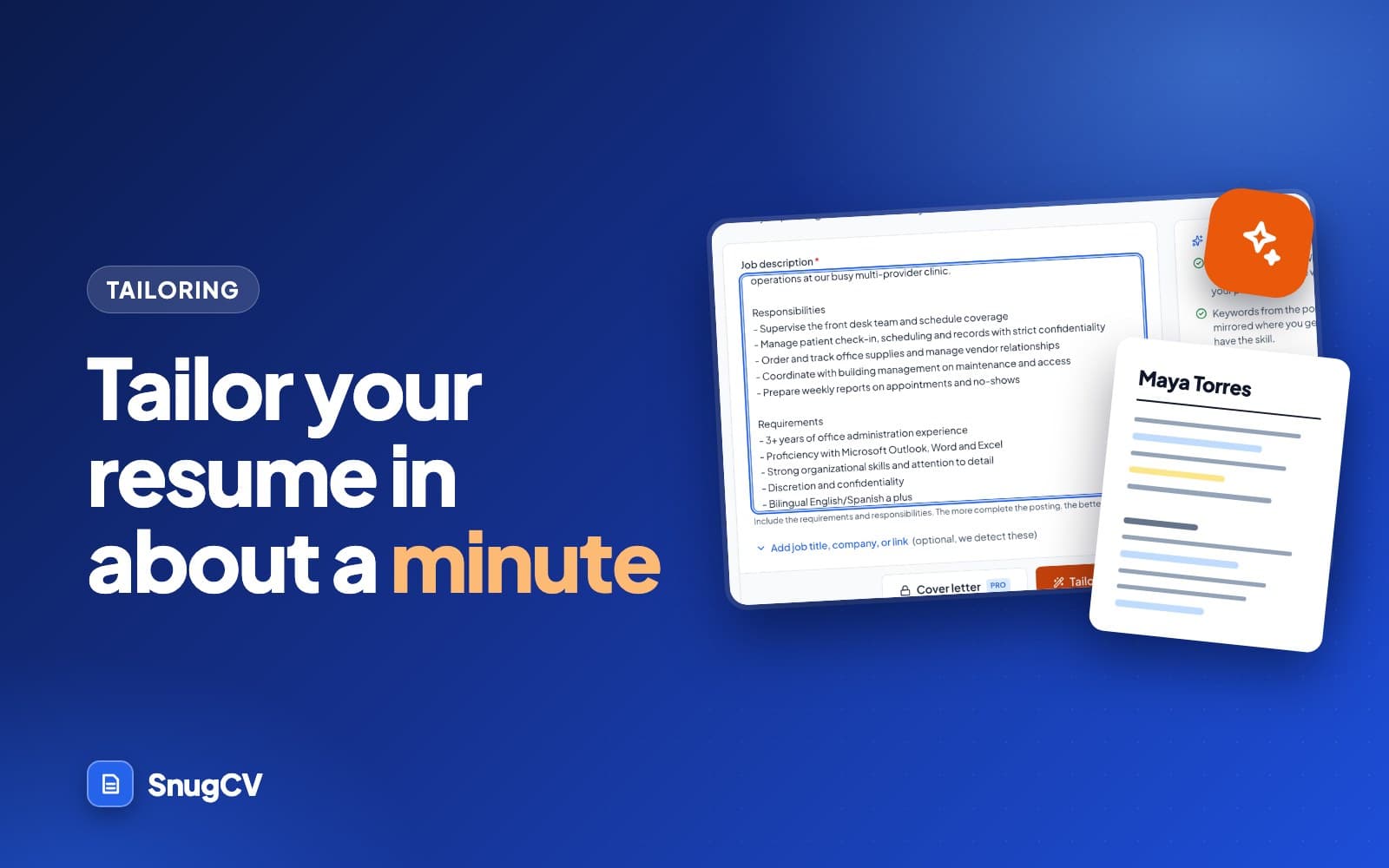
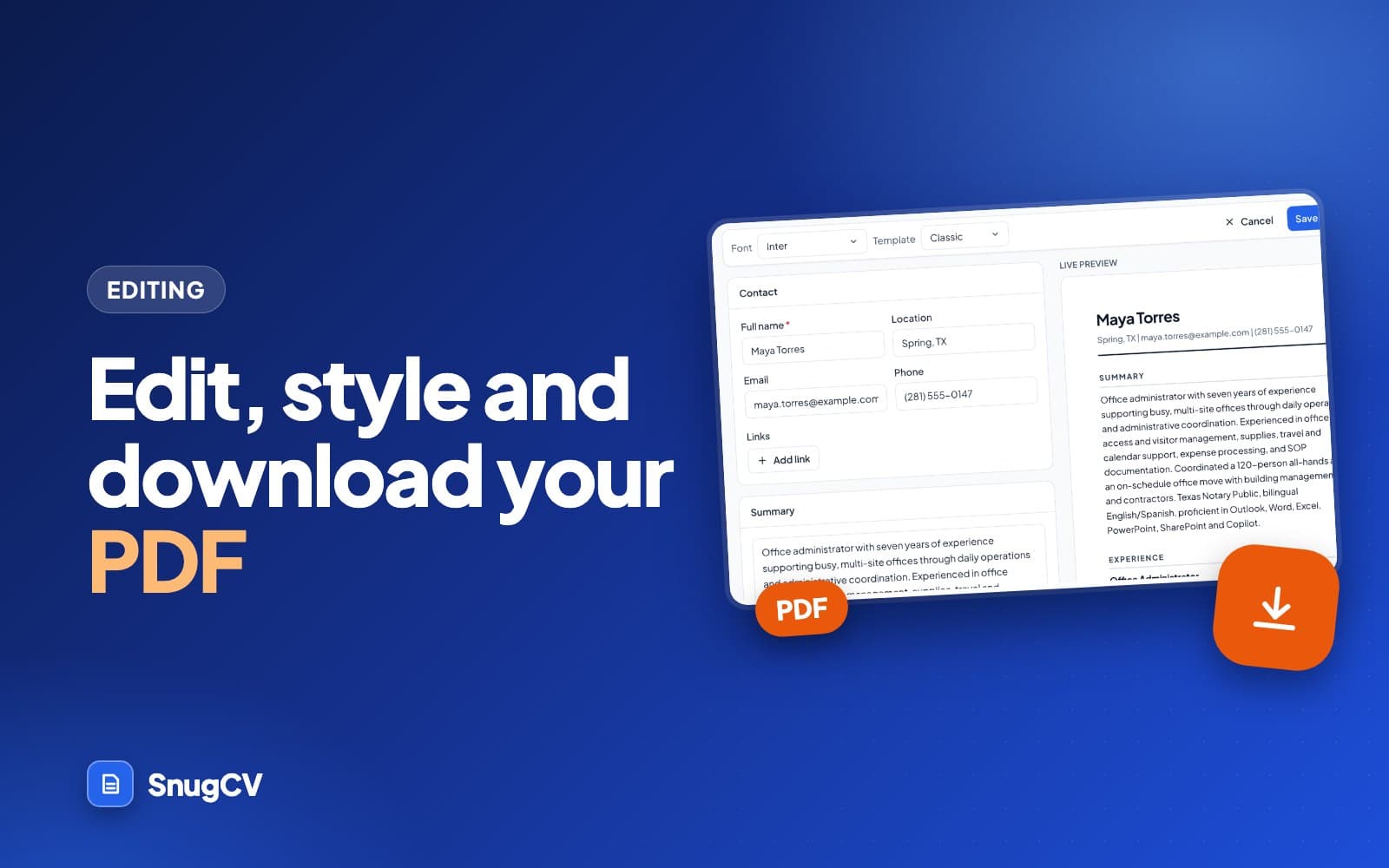
With the profile saved and checked, you are ready to tailor. Read how to tailor your resume to a job posting next. After that, how to read your tailored resume explains the keywords, gaps and change notes, and how to edit your tailored resume and download it as a PDF covers the last step.
Questions people ask
Do I need a PDF to start?
A PDF is the quickest way, because SnugCV reads it and fills in every section for you. The upload accepts PDF files only, up to 10 MB, so export a Word document or a Pages file to PDF first. If you have no resume file at all, you can fill in the profile by hand from the same screen.
What if my PDF is a scan?
SnugCV can read a scanned PDF as an image, so it does not have to contain selectable text. Scans are harder to read exactly, so check every tab more carefully than usual, especially dates, phone numbers and the spelling of names. If the result is poor, a PDF exported straight from your word processor will read better.
What happens to my old profile if I upload again?
Saving a new upload replaces every section of your current profile. That is why the upload ends with a review step: you see what was read before anything is saved, and nothing changes until you choose to save. If you only need to change one job or one skill, edit that tab instead.
How long does the upload take?
Reading a resume usually takes 20 to 40 seconds. The page shows what it is doing while you wait: reading the PDF, finding your roles and dates, then extracting skills and education. Keep the tab open until the review appears. If it fails, the page shows a message that says why, and you can try again.
Does uploading use one of my free resumes?
No. Uploading a resume, saving the profile and editing its tabs do not use any credits. A credit is used when you tailor a resume or write a cover letter. The details of what costs a credit are in the guide to SnugCV credits and Pro.
Will SnugCV change my job titles or dates?
No. Employers, titles, dates and education are copied from your profile unchanged into every tailored resume. Only the summary, the order of your skills and the wording of your bullets are rewritten for a posting. That is why it pays to check titles and dates when you review the upload.
Can I delete my data?
Yes. From Settings you can delete your account and everything in it, including your profile, resumes, cover letters and saved jobs. You can also delete a single role, degree or language from its tab on your profile whenever you like. A confirmation appears before anything is removed.
Was this guide helpful?
Get the free resume checklist and new guides
Twenty checks to run before you send a resume, as a one-page PDF. After that, a short email when new guides go up, at most once a week.