Key takeaways
- Every section of a tailored resume is editable, with a live preview as you type.
- Pick a font and template for that document, then download the PDF. The PDF is made from the saved version.
- Edits apply to that one document and your profile stays as it was. Fix real errors in the profile so every future resume has them right.
- Open the downloaded PDF and check it before you attach it: names, dates, links and page count.
In this guide
A tailored resume is a draft you control. You can reword any line, change the font and template, and download a PDF when it reads the way you want. This guide covers the edit screen, what to change and what to leave alone, the fonts and templates, and the download, including what to check in the PDF before you send it.
If you have not looked at the change notes yet, read how to read your tailored resume first. It takes a minute and tells you which lines deserve an edit.
3 fonts
Inter, Arial and Times New Roman
2 templates
Classic and Modern
1 document
is all an edit ever changes. Your profile and other resumes stay as they were
Open a document
Go to Documents in the sidebar. It lists every resume and cover letter you have tailored, newest first, with the company, the job title, the date and how many keywords matched. Search by company at the top if the list is long. Ten documents show per page, with page numbers below the list when there are more.
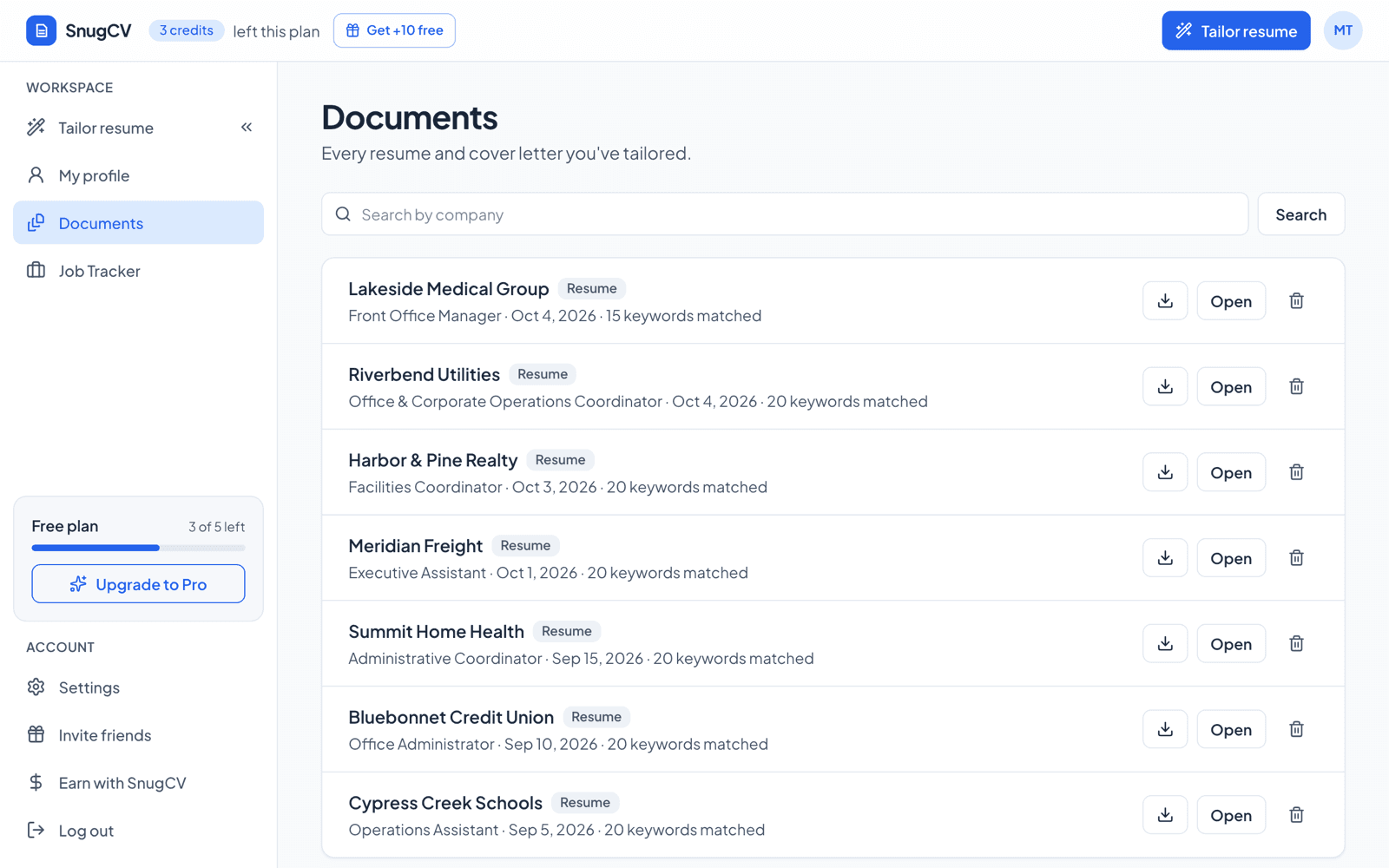
Choose Open on a row to see the document. The download icon on a row gets you the PDF without opening it first. The bin icon deletes the document after asking you to confirm. A row also shows the posting's address when SnugCV has it.
You can reach a document from the job it was made for as well. The job's page in the tracker lists its documents, newest first, and marks the ones you have edited. See the job application tracker.
Edit a resume
- On the document page, choose Edit.
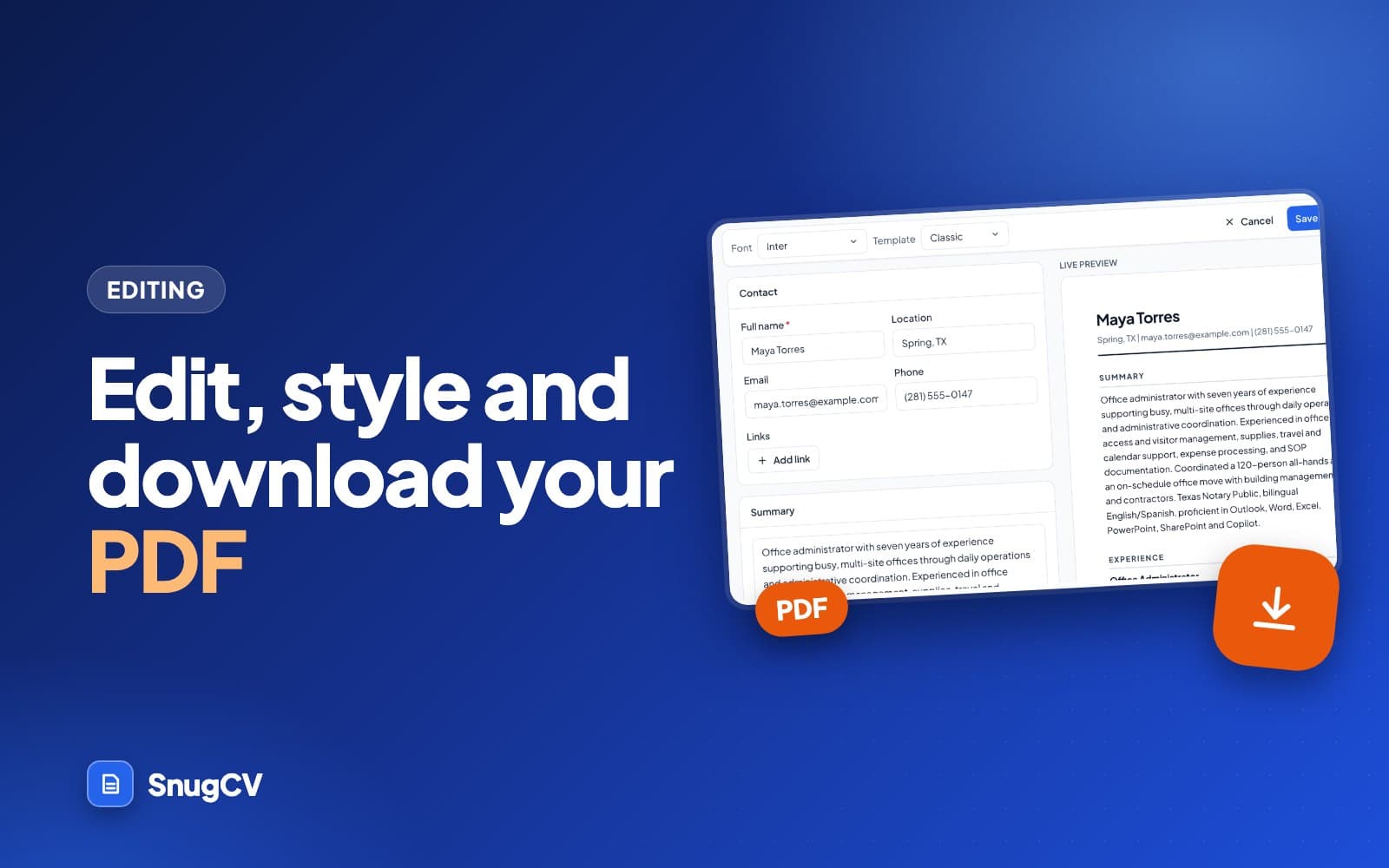
- Pick a Font and a Template from the bar at the top.
- Change any text in the sections on the left. The Live preview on the right updates as you type.
- Choose Save changes, or Cancel to leave the document as it was.
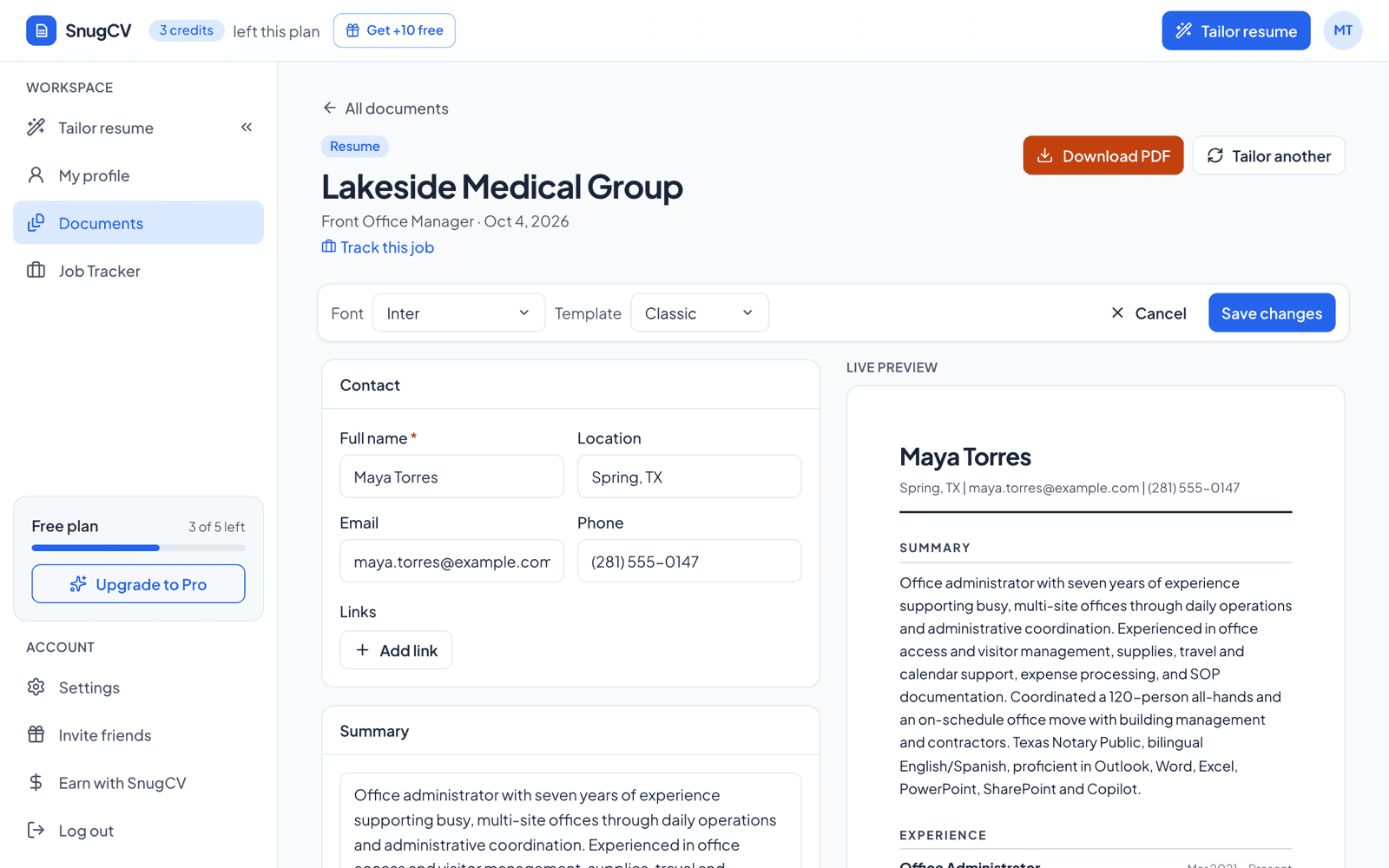
While you edit, the side panels with keywords, gaps and changes step aside to make room, and the keyword highlights are switched off in the live preview. They come back when you save. On a narrow window the preview sits below the form instead of beside it.
Cancel throws away everything you typed since you chose Edit. After you save, a message confirms that the PDF reflects your changes, and the label above the document changes from AI-generated version to Edited, with the date and time.
What each section lets you change
The form starts with your contact details and then follows your section order. Each section has its own fields.
| Section | What you can change | Good to know |
|---|---|---|
| Contact | Name, location, email, phone and links | The name is required |
| Summary | The paragraph | Tailored summaries aim for three or four sentences. Shorter is fine |
| Experience | Each job's title, company, dates and achievements. Move a job up or down, remove it, or add one | One achievement per line. Promoted here? Add more titles handles several titles at one company |
| Education | Degree, institution and years | The degree is required |
| Certificates | One entry per line | Copy the name exactly as it appears on the certificate |
| Skills | One entry per line, most relevant first | The order you type is the order on the page |
| Languages | Language and level | Appears only when it has an entry |
The order of the sections on the page is not set on this screen. It comes from the Section order setting when the document is created, so a resume you already made keeps its order. To get a different order, change the setting and tailor again. How to choose your resume template, font and section order walks through it.
What to change and what to leave
Edit wording freely. If SnugCV rewrote a bullet in a way that sounds off, fix it. If you want to shorten the summary, shorten it. What you should not do is add something that is not true, because the point of the document is that you can defend every line.
Worth editing
- A line that claims more than your role covered
- A bullet that runs past two lines
- A detail only you know: a number, a tool, a team size
- A skill you want back that tailoring left off
- A summary that does not sound like you
Leave alone
- Adding a tool, license or result you do not have
- Changing a job title or a date to fit the posting
- Stuffing keywords into the skills box
- Hiding text in white or tiny type
- Fixing a wrong date here when the profile has the same mistake
Here are three edits, made up, from different fields.
Before
Directed all patient intake operations for the practice.
After
Handled patient intake at the front desk of a five-provider practice.
A line claimed more than the role covered, so it was brought back to what the person did.
Before
Responsible for the coordination, scheduling and confirmation of all classroom volunteers, field trip chaperones and guest speakers across the third grade team for the full school year.
After
Scheduled and confirmed classroom volunteers, chaperones and guest speakers for the third grade team.
The same facts in a line a reader can take in at a glance.
Before
Operated a forklift and other warehouse equipment.
After
Operated a sit-down forklift, pallet jack and handheld scanner to move about 40 pallets a shift.
Added a detail only the person knows. The numbers and equipment come from them, not from the posting.
Fix it in the profile or in the document
Every future resume
Change it in the profile
Use the profile for facts that are wrong everywhere: an employer name, a title, a date range, a phone number, a certificate you forgot. One fix and every resume you tailor from then on has it.
This resume only
Change it in the document
Use the edit screen for choices that belong to one application: a shorter summary, a different emphasis, a bullet cut to fit, a skill moved up.
The edit screen does let you change employers, titles and dates, which is useful for a typo you find at the last minute. If the same typo is in your profile, though, fix it there too. How to upload your resume and build a reusable profile shows where each fact lives.
Fonts and templates
Every document has a font and a template, chosen from the bar at the top of the edit screen. Your defaults, set in Settings, are Inter and Classic until you change them. The choice you make here applies to this document only.
Inter
Maya Torres, operations coordinator
Scheduled 40 weekly deliveries and kept the shared calendar current for a six-person team.
Arial
Maya Torres, operations coordinator
Scheduled 40 weekly deliveries and kept the shared calendar current for a six-person team.
Times New Roman
Maya Torres, operations coordinator
Scheduled 40 weekly deliveries and kept the shared calendar current for a six-person team.
Compact
Classic
A single column with a rule under each section heading and a tight layout. SnugCV's settings screen calls it the safest choice for online application systems.
More white space
Modern
Bolder headings and more room between sections. The section headings and the rule under your name are blue. It is still plain text underneath.
You see the effect in the live preview before you save, so try both. Pick the one that reads best once your resume has its final content. Best font for a resume goes into type and spacing in more depth.
A detail about the PDF itself: the Arial option is drawn with Liberation Sans and Times New Roman with Liberation Serif, fonts built to match the originals' widths, so line breaks stay the same. The letterforms can differ slightly from what your browser shows. The PDF fonts cover Latin letters with accents as well as Greek and Cyrillic, so names with accents or letters such as Ł and Đ should come out correctly. Check the first line of the PDF anyway.
Download the PDF
- 1
Save your edits
The PDF is made from the saved document.
- 2
Download PDF
Top right of the document, or the icon on a row in Documents.
- 3
Open the file
Check it as the employer will see it.
- 4
Rename if needed
Add the role if you apply twice to one company.
Choose Download PDF at the top right of the document. The PDF uses the font and template you picked. Because it is made from the saved document, an edit you have not saved is not in it. Save first, then download.
The file name
SnugCV names the file after you, the word Resume and the company, for example Jordan-Rivera-Resume-Lumen-Health.pdf. Spaces and punctuation become hyphens and the name is capped at 80 characters. A cover letter follows the same pattern with Cover-Letter in the middle. When a posting has no company name, the job title is used in its place.
That covers the company. Add the role yourself if you apply for two jobs at the same employer, and follow the employer's own instructions if a posting asks for a particular file name.
What the PDF contains
The PDF is a US Letter page with your name and contact line at the top, your links as clickable text, and your sections in your chosen order. It holds real text, so you can select and copy it. The keyword highlights from the screen are not in it. If your resume runs past one page the PDF continues onto a second. Whether that suits your situation depends on your experience: how long should a resume be covers the choice. If you plan to print on A4 paper, choose fit to page in the print dialog.
Open the PDF and check
0 of 6 done
The select test matters. If a line highlights when you drag across it, the PDF holds text rather than a picture of text, and software can read text.
From the Chrome extension
If you work from the Chrome extension, the PDF downloads automatically as soon as the resume is ready. If the automatic download does not go through, the panel says so and offers a Download PDF button. See how the extension works.
Edit a cover letter
Cover letters open in the same workspace. The edit screen offers a font choice but no template, and its sections are the greeting, the body and the closing. The body is a list of paragraphs: each can be moved up or down, removed, or added to. How to write a tailored cover letter covers what to check in one.
Keep versions straight
Every tailored resume is its own document, so nothing you do to one touches another. That makes it easy to keep one per posting, and easy to lose track. A few habits help.
Habits that prevent mix-ups
0 of 5 done
Tailoring again creates a new document and uses a credit on the free plan, so make small wording changes in the editor instead of re-running it. SnugCV credits and Pro lists what uses a credit.
Revert if you change your mind
If you edit a document and then prefer the original, you can revert to the AI version. The Revert to AI version button sits above the document, beside Edit, and it appears once you have saved an edit. The label above the document shows when it was last edited.
Three details are worth knowing before you press it.
- It restores the text SnugCV generated and discards all your edits to it, including bullets you added from the gaps list. Those gaps come back in the gaps panel.
- It restores the text only. The font and template stay as you last saved them.
- It is all or nothing. If there is one line you want to keep, copy it somewhere first.
Revert returns to the version SnugCV generated. It does not return to your original profile wording. To undo a rewording you dislike, edit the line back to your own words.
Common problems and fixes
| Problem | Why it happens | What to do |
|---|---|---|
| Save shows an error | A required field is empty: your name, a job title, a degree or a language name | Fill it in or remove the entry, then save again |
| My edits are missing from the PDF | The file was downloaded before saving, or you are opening an older copy | Save, download again, and check the file name and date |
| The preview and the PDF break lines differently | The preview uses fonts on your device. The PDF embeds its own | Trust the PDF and check it |
| The PDF runs to two pages | The content is longer than one page | Shorten bullets in the editor or cut older roles, then download again |
| A date or title is wrong on every resume | The profile has it wrong | Fix the profile and tailor again, and fix this one in the editor |
| The Revert button is not there | No edit has been saved yet | Nothing to revert |
| The section order is not what I want | Order is taken from Settings when the document is created | Change the setting and tailor again |
| A name looks wrong in the PDF | The fonts cover Latin with accents, Greek and Cyrillic, and other scripts may not show | Check the first line of the PDF every time |
Next step
Once the resume is ready, track the application so you know what you sent and where. If the posting wants a letter as well, how to write a tailored cover letter covers it.
Questions people ask
Can I change the AI's wording?
Yes. Every section of a tailored resume is editable, and you see a live preview of the document as you type. Choose Edit on the document page, change the text, and save. Reword a line, shorten the summary, add a detail only you know, or remove a bullet that overstates what you did.
Can I go back to the original version?
Yes. After you have saved an edit, a Revert to AI version button appears above the document. It restores the text SnugCV generated and discards your edits to it, including any bullets you added from the gaps list. It restores the text only, so your font and template stay as you last saved them.
Do my edits change my profile?
No. Edits apply to that one document. Your profile stays as it was, so your other resumes are not affected. If you find a real error, such as a wrong date or a misspelled employer, fix it in your profile as well, or the next resume you tailor will carry the same mistake.
Where do I find resumes I have already made?
On the Documents page, which lists every resume and cover letter you have tailored, newest first, with search by company and a download button on each row. Each job in the job tracker also lists the documents made for it and marks the ones you have edited.
Does the PDF include the keyword highlights?
No. The highlights are a reading aid on the document page and they switch off while you edit. The PDF is a clean resume in the font and template you chose, with your name and contact details at the top and clickable links. Nothing from the side panels is printed on it.
Can I change the section order of a resume I already made?
Not from the edit screen. The order of sections is taken from your Section order setting when the document is created. Change the setting in Settings and it applies to your next document. The edit screen does let you move jobs up and down, reorder skills and change the font and template.
Do edits or downloads use credits?
No. A credit is used when a resume or cover letter is created. Editing, reverting and downloading the PDF as many times as you like do not use credits. The full list of what costs a credit is in the guide to SnugCV credits and Pro.
Was this guide helpful?
Get the free resume checklist and new guides
Twenty checks to run before you send a resume, as a one-page PDF. After that, a short email when new guides go up, at most once a week.