Key takeaways
- Every posting you tailor for becomes a tracker row, on every plan including free.
- Set a status, keep notes and see a full history for each application.
- Search and filters apply as you type, and the tracker syncs with the Chrome extension.
- A line in the notes after each contact and a short review of the Active tab each day is the whole system.
In this guide
A job search is a lot of small facts: where you applied, when, which resume you sent, who the recruiter was and what they said. A spreadsheet works until it does not. The SnugCV job tracker keeps those facts next to the resume that went with them, and it fills in most of the first entry for you.
This guide covers how jobs get in, what each status is for, how to search and filter, what to write in the notes and when to follow up, with a routine that takes a few minutes a day. If your search is still mostly about getting resumes out, start with how to tailor your resume to a job posting. The tracker is what you use after.
How jobs get into the tracker
You do not enter a job by hand. Every posting you tailor a resume for becomes a row, with the title, company, location and description taken from the posting. If you apply to something without tailoring, the Chrome extension has a Track this job button that adds it.
| How it starts | What you get |
|---|---|
| You tailor a resume in the web app | A row with the details found in the posting, the posting text and the resume under Documents |
| You tailor from the Chrome extension | The same, plus the link to the page |
| You choose Track this job in the extension | A row with whatever the page provided (title, company, link, description) and no documents yet |
Rows are matched by link. If you tailor again for a posting with the same link, the new resume goes into the same row and the Documents count goes up, so you do not get a second entry. When the web app has no link for a posting, each tailoring makes its own row. Add the link in the optional details on the Tailor page if you expect to tailor the same posting twice.
The tracker page
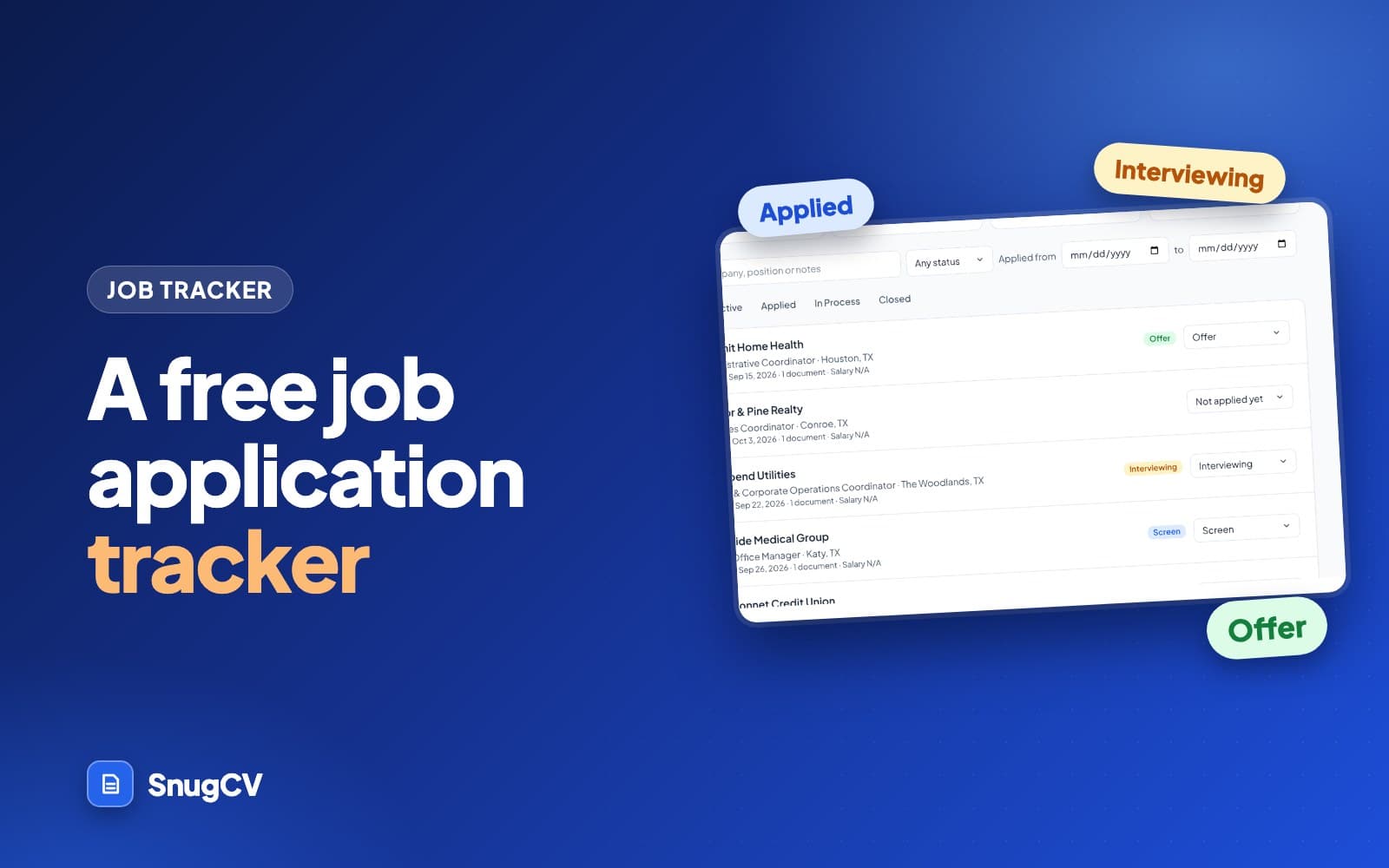
Open Job Tracker from the sidebar. At the top, four counts show where you are: jobs, applied, in process and offers. Below that you can search by company, position or notes, filter by status or by a range of applied dates, and switch between the All, Active, Applied, In Process and Closed tabs.
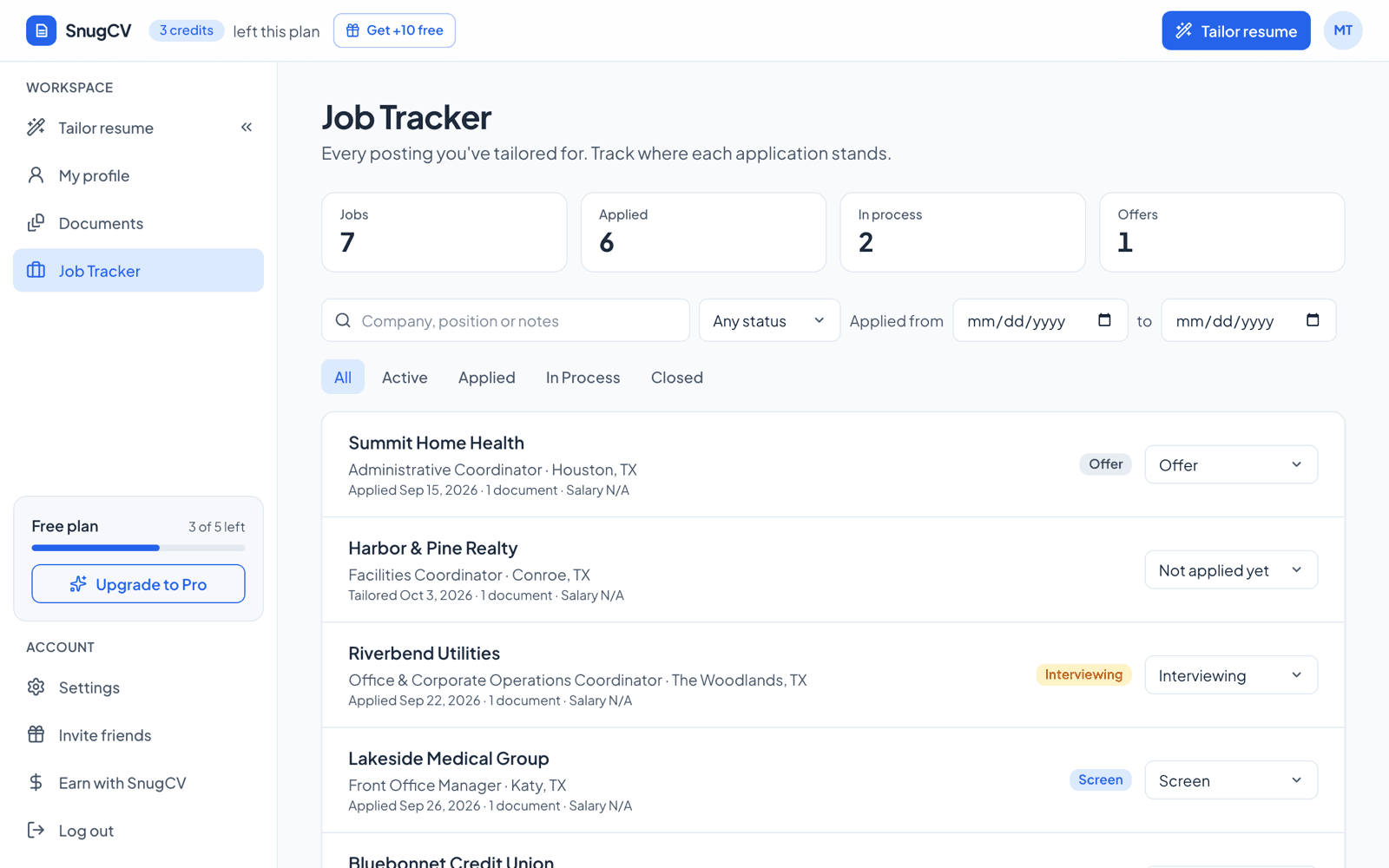
Each row shows the company, position, location, when you applied, how many documents you have for it and a status you can change in place. A job you have tailored for but not applied to has no status badge, and the line under its name reads Tailored with a date instead of Applied. Rows are sorted by what you touched last, so the job you just updated is at the top.
Here is what the counts and tabs add up, since the names are close to each other.
| Count at the top | What it adds up |
|---|---|
| Jobs | Every job in your tracker, whatever its status |
| Applied | Every job you have given a status, including ones since rejected or withdrawn |
| In process | Jobs at Screen or Interviewing |
| Offers | Jobs at Offer or Accepted |
| Tab | What it shows |
|---|---|
| All | Everything, including jobs with no status yet |
| Active | Jobs still open: Applied, Screen, Interviewing and Offer |
| Applied | Jobs at Applied and nothing further |
| In process | Jobs at Screen, Interviewing or Offer |
| Closed | Jobs at Withdrawn, Ghosted, Rejected or Accepted |
Statuses and what each is for
The tracker has eight statuses. It does not police what they mean, so it helps to decide once and use them the same way every time. This is one way to do it.
| Status | Use it when | Shows under |
|---|---|---|
| Applied | You have submitted the application | Active, Applied |
| Screen | A first conversation is booked or done, such as a recruiter call or short phone screen | Active, In process |
| Interviewing | You are in interviews with the team, or doing an assessment or a work sample | Active, In process |
| Offer | You have an offer and have not answered yet | Active, In process |
| Accepted | You have said yes | Closed |
| Rejected | They said no, at any stage | Closed |
| Withdrawn | You pulled out | Closed |
| Ghosted | They stopped replying and you have decided to treat it as closed | Closed |
- 1
Not applied yet
Tailored for, not sent. No status badge.
- 2
Applied
Submitted. The applied date is set.
- 3
Screen
A first call or short conversation.
- 4
Interviewing
Interviews, assessments or work samples.
- 5
Offer
An offer you have not answered.
- 6
Accepted
You said yes. The job closes.
Choose a status from the dropdown on any row, or from the Application card on the job's page. The first time you give a job a status, SnugCV sets the applied date for you. You can edit the date if you applied on a different day. Each change is recorded with its date and time in the job's history, so you can see how long each step took.
Searching and filtering
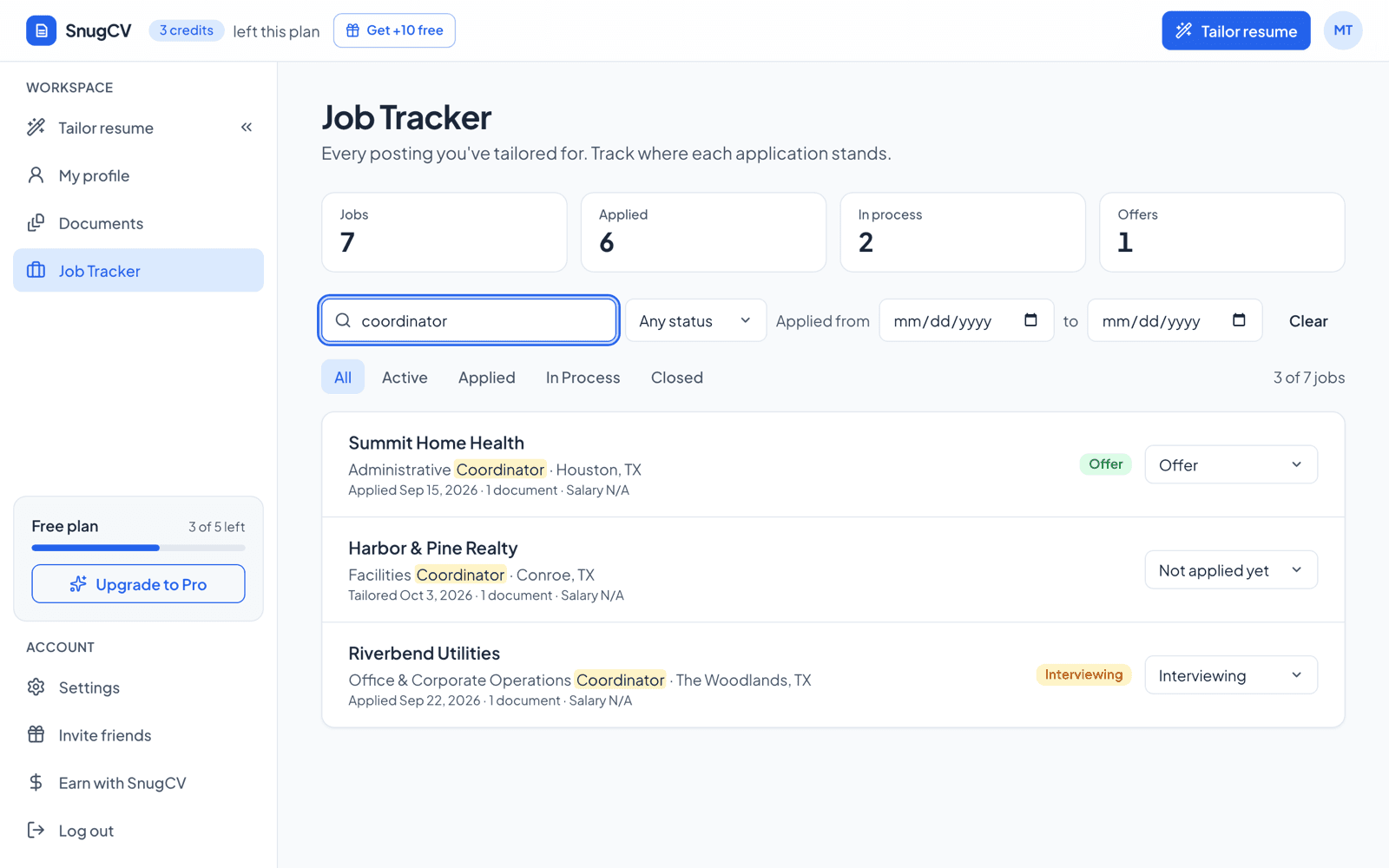
Search applies as you type, after a short pause. It looks in the company, the position and your notes, highlights the match in the row and shows the matching part of the note underneath. Status and date fields apply as soon as you change them. The tabs keep your search, and the search keeps your tab.
| You want | Do this |
|---|---|
| Everything waiting on a reply | Open the Applied tab |
| Everything still open | Open the Active tab |
| A recruiter's name or a detail you wrote down | Type it in the search box, which looks in notes as well as company and position |
| What you sent in September | Set Applied from and to |
| Every rejection | Pick Rejected in the status menu |
| Jobs you tailored for but have not sent | Scan All for rows with no status badge and a Tailored date |
While a search or filter is on, a count above the list reads something like 3 of 24 jobs, so you can tell a narrow filter from an empty tracker. A date range uses the applied date, so a job with no applied date does not match it.
Open a job
Choose a row to see everything about that application on one page.
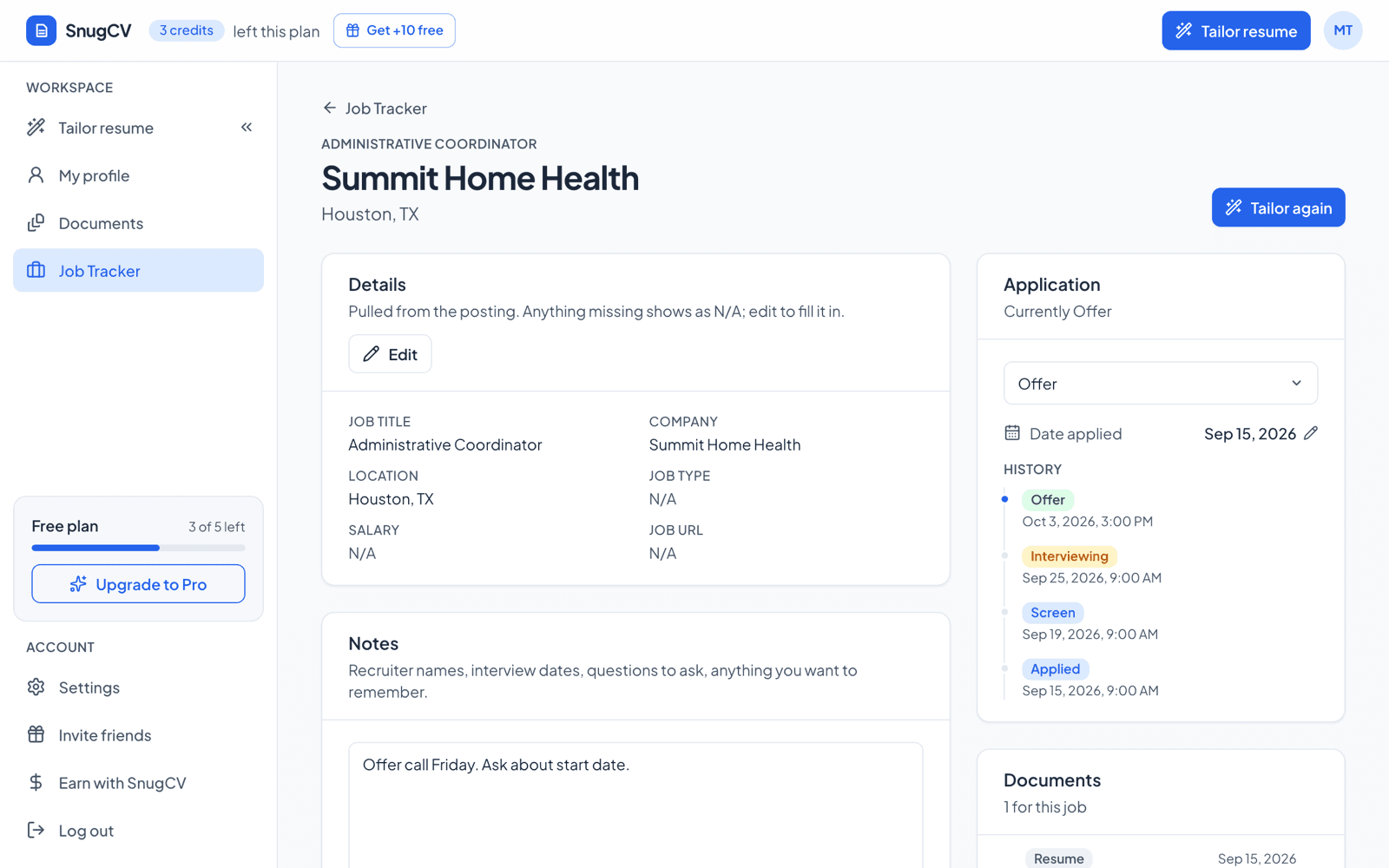
- Details are pulled from the posting: title, company, location, job type, salary and link. Anything missing shows as N/A, and you can edit the fields to fill it in. When a recruiter tells you the salary range, put it here.
- Notes are for recruiter names, interview dates, questions to ask and anything else you want to remember. They save when you click away from the box, and Save notes saves at once. The line under the box says Saved or Unsaved changes.
- History is a timeline of every status the job has had and when, so you can see how long each step took.
- Documents lists the resumes and cover letters you generated for that job, with the date and an edited tag if you changed one. Open one to edit it or download the PDF.
- Job description keeps the posting as it was captured. Postings are often taken down once the role is filled, so this is the copy you can refer back to before an interview. It is folded away by default, and you can edit it.
If you want a fresh version for the same job, choose Tailor again at the top. Open posting appears when the job has a link and goes back to the original page while it is still up.
What to write in the notes
Notes are the part most people skip and then wish they had kept. The goal is that you could pick up the application cold in three weeks, on a phone call you did not expect. After each contact, write who, when, what was said and what comes next.
Notes for one job (made up)
- Recruiter: Dana Whitfield, 555 0142
- Applied: Oct 11 through the company site, resume tailored the same day
- Call: Oct 14, 20 minutes. Asked about weekend availability and which scheduling software I have used
- Next: interview with the clinic manager, Oct 23, 2 pm, in person. Bring two copies of the resume
- Ask them: team size, how holiday coverage works, what the first month looks like
- FOLLOW UP: Oct 20 if no email
Write down
- Names, dates and the channel: who called, when, by phone or email
- What you were asked, so you can prepare for the next round
- What you promised, such as sending a portfolio or references
- The date to follow up, in the same words every time so you can search for it
- Anything they told you about timing, pay or the team
Leave out
- Passwords or login details for application portals. A password manager is the place for those
- Long copies of emails. A line on what was agreed is enough, and the email is still in your inbox
- Guesses about how the call went. Write what was said
Because search covers notes, a consistent word does real work. If every follow-up date line starts with FOLLOW UP, typing those two words in the search box finds all of them in one go.
When to follow up
No timing is right for every employer. If the posting or the recruiter gave you a date, that beats any rule of thumb. When no one did, these are common habits.
The day you apply
Set Applied, and write where you applied and which resume went.
About a week later
With no word and no stated timeline, one short polite note asking whether the application arrived. Wait longer if the posting gave a closing date.
The day of a call or interview
Add notes while you remember them, then send a thank-you.
A few days after the date they gave you
A brief note asking for an update. Keep it to two or three lines.
After a second note with no answer
Set Ghosted and move on. You can change the status back if they reply.
Thank-you email after an interview has examples for the note after a call. Setting Ghosted is a decision about your own time. It keeps the Active tab honest, and it costs nothing if they come back, because the status can change at any point.
A routine that works
- Tailor a resume for each posting you seriously consider.
- When you submit an application, set the status to Applied.
- After each call or email, add a line to the notes with the name, the date and what you agreed.
- Move the status as things change, so the history is accurate.
- Check the Active tab once a day to see what needs a follow-up.
Once a week, take twenty minutes for a slightly bigger look.
Weekly review
0 of 5 done
The tracker or a spreadsheet
A spreadsheet is a fine tool, and many people keep one. Here is where each is stronger.
The SnugCV tracker works well when
- You want the resume you sent attached to the application without naming files
- You want the posting kept as captured, since it may be taken down
- You work from job pages in the browser and want a status without leaving the page
- You want the first entry filled in for you, not typed
A spreadsheet is better when
- You want your own columns, formulas or charts
- You want to share the list with a coach, mentor or friend
- You track things that are not applications, such as networking contacts or events
- You want every row visible at once in one wide table
You do not have to pick one. The tracker holds the application and its resume. If you also want a personal view, a spreadsheet beside it costs little.
Tips for a long search
A search that runs for months is a different job from one that runs for weeks. A few habits help.
- Close out dead ends. A tracker with forty open rows hides the six that matter. Ghosted and Withdrawn exist for this.
- Read the counts as well as the rows. They show how many applications reach a screen and how many reach an interview. If many go out and few get a reply, the cause may be the resume or the choice of roles, and how to read your tailored resume is a good place to look.
- Use the date filter to see a month at a time. It helps you spot a slow week and plan the next.
- Keep the posting. When an interview comes six weeks after you applied, the posting may be gone and the job description card still has it.
- Treat the counts as a record of effort. A search can feel like it is going nowhere while the Applied count keeps rising.
Common problems
| What you see | Why | What to do |
|---|---|---|
| A job you expected is missing | Only jobs you tailored for, or tracked in the extension, appear. A search or date range may also be hiding it | Check the count above the list and choose Clear |
| Two rows for the same posting | You tailored twice without a link, so each made its own row | Delete the extra from its page, and add the link next time |
| Wrong company or title | They were detected from the posting text | Open the job and choose Edit in Details |
| A status you set by mistake | A misclick on the dropdown | Set the right status. The mistaken step stays in the history |
| The applied date is wrong | It is set the first time you choose a status | Open the job and edit the date applied |
| No documents on a job | It was added with Track this job and no resume was generated | Tailor for the same posting and the resume joins the row |
Next step
The tracker is also available inside the Chrome extension, so you can set a status without leaving the job page. Read how the extension works. When you are ready to apply, autofill job applications covers the form, and how to prepare for an interview picks up when a status moves to Screen.
Questions people ask
Is the job tracker free?
Yes. The job tracker is part of every SnugCV account, including the free plan. Adding a job, setting a status and writing notes do not use a credit. Only generating a tailored resume or cover letter does, and the job lands in the tracker as a side effect of that.
How does a job get into the tracker?
Each posting you tailor a resume for becomes a tracker row, from the web app or the Chrome extension. In the extension you can also choose Track this job for a posting you applied to without tailoring. The web tracker has no add button, so those two are the routes in.
What statuses are there?
Applied, Screen, Interviewing, Offer, Withdrawn, Ghosted, Rejected and Accepted. A job you have tailored for but not yet applied to shows as Not applied yet. You can move a job to any status at any time, and each change is kept in its history with a date and time.
Is the applied date set for me?
Yes. It is set automatically the first time you give the job a status, and you can edit it on the job's page if you applied on a different day. The date filter on the tracker uses this date, so a job with no applied date does not match a date range.
Can I track a job I never tailored a resume for?
Yes, with the Chrome extension. Open the posting, choose Track this job in the panel and it is added with the title, company and link the page provided. You can then set a status and write notes from the panel. If you tailor from the same page later, the resume joins the same row.
What happens if I delete a job?
The job is removed along with the resumes and cover letters you generated for it. The confirmation names how many documents will go before you agree. Download any PDF you want to keep first. Jobs you leave alone stay in your tracker, so closing one with a status is usually better than deleting it.
Was this guide helpful?
Get the free resume checklist and new guides
Twenty checks to run before you send a resume, as a one-page PDF. After that, a short email when new guides go up, at most once a week.