Key takeaways
- Autofill fills the application form from your profile and attaches the resume you tailored. It is a Pro feature.
- It never submits the application and never overwrites what you typed.
- Answers are saved only when you choose to save them, and you can delete any of them in Settings.
- Saved answers are reused by question wording, so re-read anything that depends on the specific job.
In this guide
Application forms ask for the same things again and again: your name, your contact details, your links, your location, your current role. Autofill is the part of the SnugCV extension that types those in for you. It is a Pro feature, and it is built so that you stay in control of what is sent.
This guide explains what it fills and from where, what it leaves alone, how saved answers work, and a short review routine to use before you press submit on any form. If you have not set up the extension yet, start with how to tailor your resume from LinkedIn, Indeed and other job pages, which covers installing and connecting it.
What autofill does
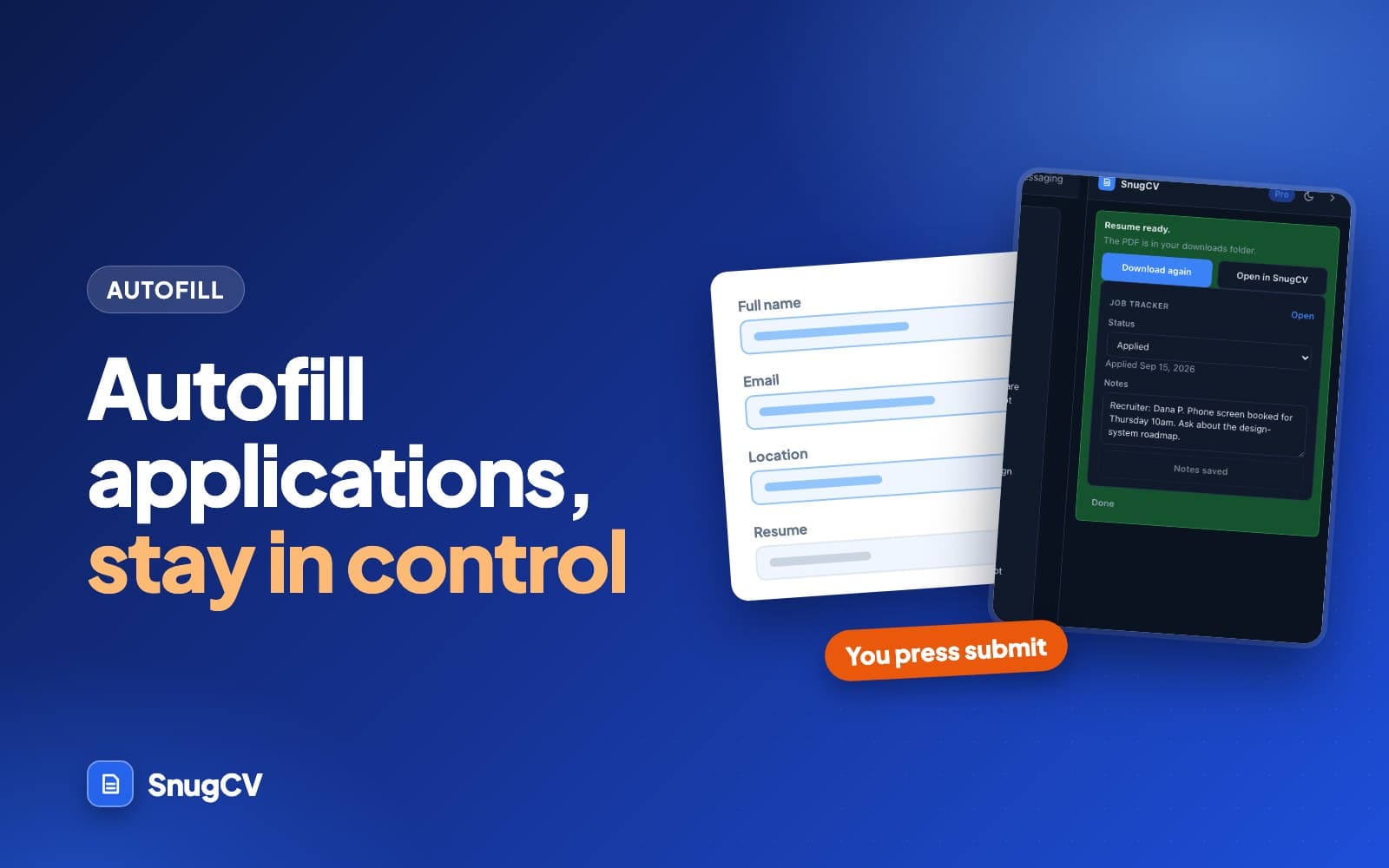
When you open an application form with the extension installed, the panel offers Autofill application. One click and it:
- Fills in your name, contact details, links, location and current role from your profile.
- Picks your country and city in dropdowns.
- Attaches the resume and cover letter you tailored for that job.
- Answers questions you have saved before, including follow-up questions that appear as you go.
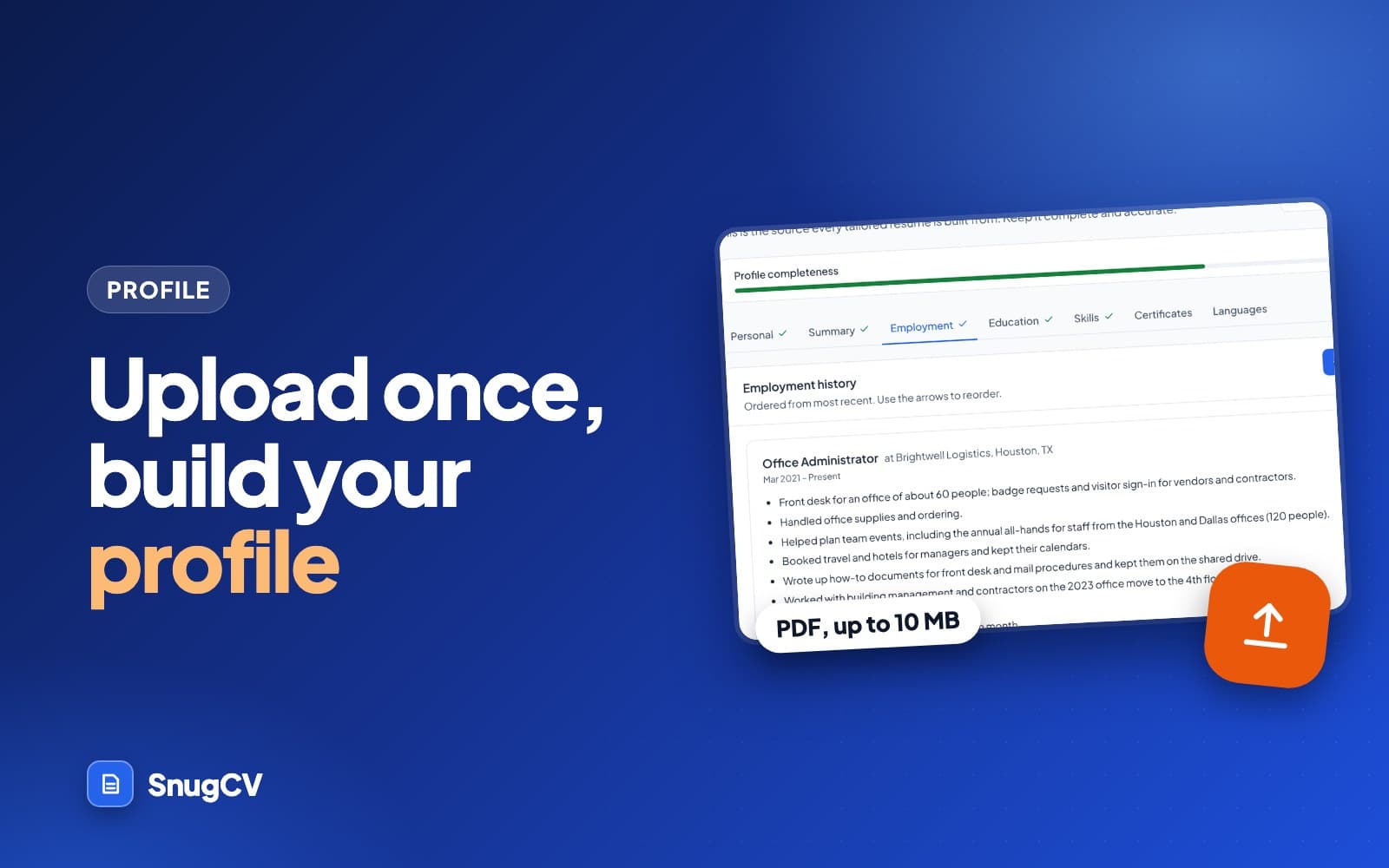
All of it comes from the saved profile you built from your resume, so the form and the resume you attach agree with each other.
| The form asks for | Autofill uses |
|---|---|
| First name, last name or full name | The name in your profile, split at the first space |
| Email and phone | The email and phone in your profile |
| LinkedIn, GitHub, X or Twitter, website or portfolio | The matching links in your profile |
| Current company and current job title | Your most recent job in the profile |
| Location, city and country | The location in your profile |
| School and degree | Your most recent education entry |
| Resume and cover letter uploads | The PDFs you tailored for this posting |
Two details in your profile are worth checking before you rely on this. A name with more than two parts is split at the first space, so a middle name lands in the last-name field. And the country is only known when your profile location has two or more parts, such as "Austin, Texas, United States". A location written as a single city name fills the city but leaves a country dropdown for you. How to upload your resume and build a reusable profile shows where each field lives.
What it never does
- It never submits the application. You review every answer and click submit yourself.
- It never overwrites something you typed.
- It does not guess at questions it cannot answer for you. It leaves them empty and lists the required ones that still need you.
Submitting is the one step that commits you to what is on the form, and many forms end with a statement that you confirm the answers are accurate. That decision stays with you.
It also never writes a free-text answer for you. Long answer boxes, such as "Why do you want to work here?", are always left empty. There is no AI involved in autofill. It matches your profile details and the answers you saved to fields by their labels and names.
- 1
Finds the form
On the page, or inside a frame on the company's own site.
- 2
Fetches your details
Your profile, your saved answers and the documents tailored for this posting.
- 3
Fills what it recognizes
In your browser, field by field, skipping anything you already filled.
- 4
Looks again
Answers can reveal follow-up questions, so it checks the form again and fills those too.
- 5
Attaches the PDFs
The resume and cover letter, where the form has an upload for each.
- 6
Lists what is left
Required fields still empty, for you to answer. Then it stops.
Step by step
- Install and connect the extension. If you have not, start with how the extension works.
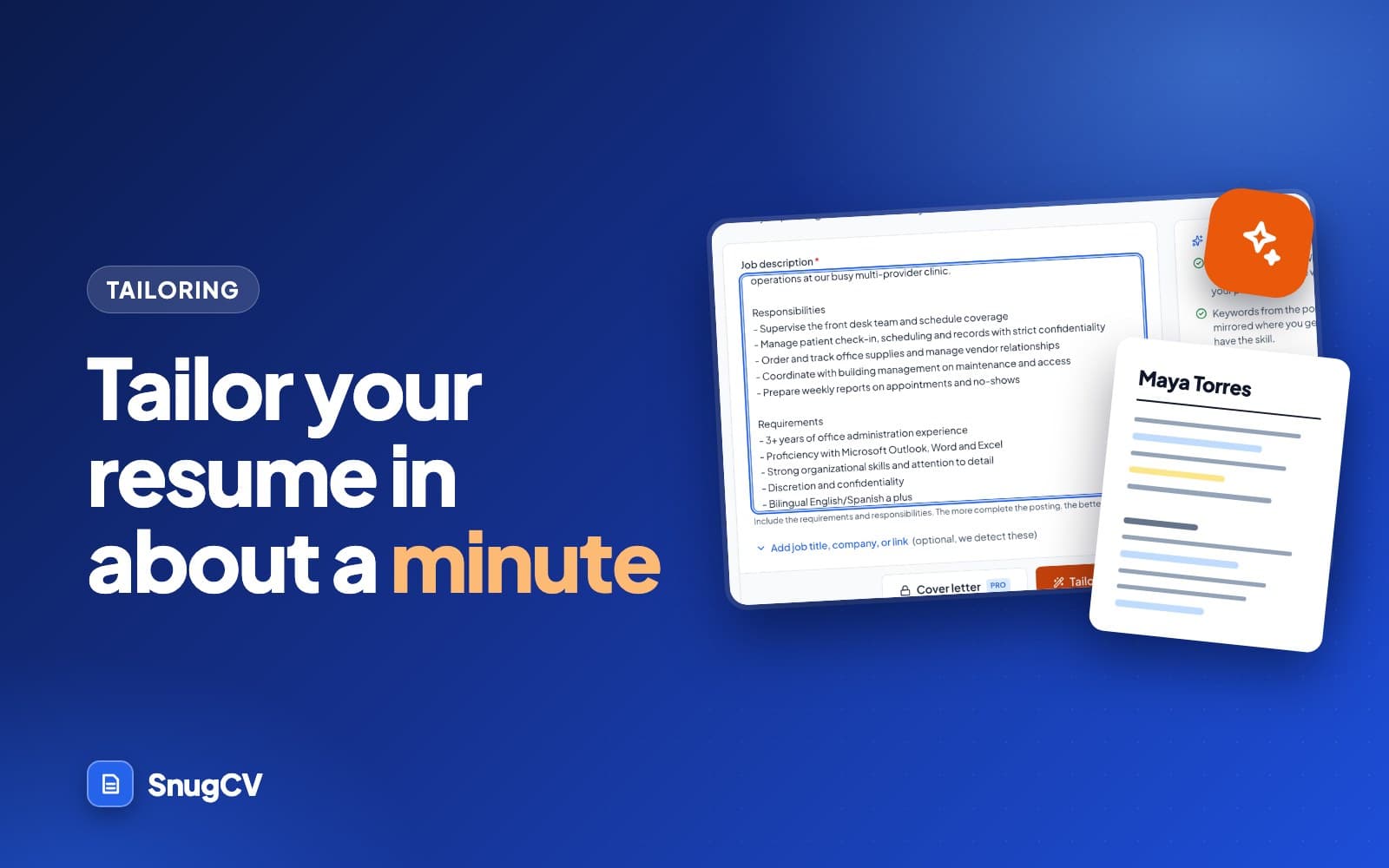
- Tailor a resume for the job, either in the web app or from the job page. How to tailor your resume to a job posting shows the web route.
- Open the application form. The panel shows on pages with an application form, including forms embedded inside a company's own careers page.
- Choose Autofill application.
- Read through the form, fill in what is left and check what was entered.
- Submit the form yourself. SnugCV marks the job as Applied in your tracker when you do, whether or not you save your answers.
Step 2 matters more than it looks. Autofill finds your documents by the posting's address, and it attaches the latest resume and cover letter you made for that address. The most reliable route is to tailor from the panel on the same posting, which is what the extension does by default. If you tailored in the web app, put the posting's own link in the optional Job URL field so the two can be matched. When no tailored resume is found, the panel says so and you can tailor one and run autofill again.
- 1
Application form on this page
Heading
The panel found a form it can fill, on the page or inside a frame.
- 2
Filled 9 fields and attached your resume and cover letter
Result
A count of the fields it filled and the documents it attached.
- 3
Work authorization, Salary expectations, Why do you want to work here?
Still needs you
Required fields that are still empty. Four are listed, then a count of the rest.
- 4
Check every answer, then submit the application yourself.
Last line
Autofill stops here. The site's submit button is yours to press.
- 5
Autofill again, Save my answers now
Buttons
Autofill again fills anything new, such as a resume you tailored since. Save my answers now keeps this form's answers for next time.
The field names in the example are made up. Your panel lists the labels of your own form.
A worked example, one form from start to finish
Priya Nair is a made-up applicant for a front desk coordinator role at a dental group. Her profile is saved with a location of "Dayton, Ohio, United States", and she tailored a resume from the panel on the posting. She saved answers on two earlier forms. This is what autofill does with the form in front of her.
| Field on the form | What autofill does | Why |
|---|---|---|
| First name, last name | Filled with Priya and Nair | From the name in her profile |
| Email, phone | Filled | From her profile |
| LinkedIn URL | Filled | Her profile has a LinkedIn link |
| Portfolio or website | Left blank | Her profile has no website link |
| Current employer | Filled with her most recent employer | The first job in her profile |
| Country | Selected as United States | Her profile location has a country |
| Are you legally authorized to work in the US? | Selected as Yes | A saved answer from an earlier form |
| Will you require sponsorship? | Selected as No | A saved answer from an earlier form |
| Desired salary | Left blank | No saved answer to this question |
| Why do you want to work here? | Left blank | Long written answers are never filled |
| Gender (voluntary) | Left blank | The demographic box is not ticked |
| Resume | Attached | Tailored for this posting |
| Cover letter | Not attached | The form has no cover letter upload |
The panel reports nine fields filled and the resume attached, with desired salary and the motivation question under Still needs you. Priya answers those two, reads the rest and presses submit herself. Every answer on the form is one she has looked at.
Saved answers
Some questions repeat from one application to the next, such as whether you need visa sponsorship or when you could start. SnugCV can remember your answers so the next form is quicker, but only if you choose to:
- Click Save my answers now after filling in a form, or
- Tick Save my answers automatically when I submit an application. This box starts unticked.
Voluntary demographic questions, such as gender, ethnicity, veteran status and disability, are saved only if you tick a separate box for them. Long written answers, file uploads, consent boxes and anything that looks like a password or ID number are never saved. If you do neither of the two things above, nothing you type or choose on an application form is sent to SnugCV or stored.

| Kind of answer | Saved? | What happens on the next form |
|---|---|---|
| Dropdown choices | Yes | The same question gets the same option |
| Yes or no questions and other radio buttons | Yes | The same option is selected |
| Checkbox lists | Yes | The saved options are ticked |
| Short text answers | Yes, when short | The text is typed in |
| Long written answers | Never | Left empty for you |
| Uploads and a lone consent box | Never | Left for you. The resume and cover letter come from your tailored documents |
| Anything that looks like a password or ID number | Never | Left for you |
| Voluntary demographic questions | Only with the separate box ticked | Filled only if you saved them with that box ticked |
Details your profile already has, such as your name and email, are not copied into saved answers. Your profile stays the one place they live, so changing it changes every later form.
How a saved answer finds its question
Answers are matched by the wording of the question, with capitals and punctuation ignored. When the question names the employer, the name is swapped for a placeholder, so a question about one company matches the same question at another.
Saved on one form
Have you ever worked for Cedar Valley Family Health? No
Matched on another
Have you ever worked for Brightway Home Goods? No
The employer's name is ignored when matching. The rest of the question has to read the same.
Matching goes by wording, so two employers who phrase the same question differently may each ask you once. Saving an answer to a question you have saved before replaces the earlier answer, so the newest one wins. An account keeps up to 300 saved answers. When you reach that, delete some old ones in Settings to make room.
Voluntary demographic questions
Many forms end with voluntary questions about gender, ethnicity, veteran status or disability. They are separate from the rest on purpose, because they are personal and because answering them is your choice.
By default autofill leaves them blank and nothing about them is saved. If you want them filled the same way every time, tick Include my answers to voluntary demographic questions in the panel, answer them once on a form and save. SnugCV's privacy policy says these answers are used only to fill the same questions on your later applications. They are not used to tailor documents, not sent to the AI provider and not shared with employers or recruiters. Unticking the box and deleting the answers withdraws your consent.
The questions it leaves to you
Autofill leaves some questions blank on purpose, because the right answer depends on this employer, this role or this week. They tend to be the same few kinds on every form, so it helps to have a plan for them.
| Question | Why it is left to you | A way to handle it |
|---|---|---|
| Why do you want to work here? | It has to be about this employer | Two or three sentences naming one specific thing about the role or the organization. Why should we hire you covers how to build the answer |
| Describe a time when you handled a difficult situation | It needs a real story | Keep two or three real stories written down and adapt one. The STAR method is a simple structure |
| Salary expectations | It depends on the role and where it is | Give a range you have researched if the form allows one. How to negotiate salary covers the offer stage |
| Start date or notice period | It depends on your current job | Be realistic and consistent with what you say later |
| Anything that says you certify or confirm | You are attesting that it is accurate | Read it, and do not tick it unless it is true |
A short habit saves time here. Keep the three or four stories and a one-line answer to common questions in a plain text file, and copy from it. Adapt the wording to the posting each time. A pasted answer that names the wrong employer does more harm than a blank box.
Review before you submit
Autofill takes care of the typing, and the review is where your care goes. A reused answer was right for the application it was saved on and may be wrong for this one. Read the whole form once, top to bottom, with these in mind.
Before you press submit
0 of 8 done
The costly mistakes are usually answers that were right for a different job. Here is how that plays out for three made-up applicants in different fields.
Healthcare
Registered nurse
Saved once and reused: whether sponsorship is needed, which state issued the nursing license, whether a CPR certification is held.
Check each time: preferred shift, unit, start date, and any question about floating between sites.
Logistics
Warehouse associate
Saved once and reused: whether a forklift certification is held, whether the stated lifting weight is fine, whether there is a driver's license.
Check each time: shift pattern, overtime, commute distance and the start date.
Education
Primary school teacher
Saved once and reused: whether a valid teaching license is held, the right to work, whether a background check is on file.
Check each time: grade level, subject, the district's own questions about license endorsements.
Where it works, and where it may not
Autofill works on forms on company careers pages, including application forms that are embedded in the page, and it fills follow-up questions as they appear. Forms differ a great deal between employers, so some fields may not be recognized. Always look over the form before you submit.
How it finds a form is straightforward. On the job sites it knows, it looks for the form that site uses for applications. On other pages it treats a form that takes a file upload and has several fields as an application form. That is also why the panel shows up on a careers page that has an application form.
Some things are outside its reach:
- Forms that are not open yet. Click the site's own Apply button, then run autofill.
- Hidden fields are skipped, so a form that shows one step at a time is filled one step at a time. Run autofill again on the next step.
- Custom widgets that do not behave like normal dropdowns or buttons may be left alone.
- Fields whose label it does not clearly recognize are left alone, because a blank is better than a wrong answer.
- A site can be paused. If autofill misbehaves on a particular site, SnugCV can switch it off for that site until it is fixed, and the panel tells you so and asks you to fill the form by hand.
When something does not go as expected
| What you see | Usual cause | What to do |
|---|---|---|
| Autofill application with a Pro label | You are on the free plan | The button links to the pricing page |
| The application form is not open yet | The form is behind an Apply button | Click the site's Apply button, then autofill |
| Nothing new to fill | The fields are already filled, or none are recognized | Check the form. Fill the rest by hand |
| No tailored resume for this job yet | Nothing was tailored for this posting's address | Tailor one in the panel, then choose Autofill again |
| The wrong resume is attached | Autofill attaches the latest one for this posting | Tailor again, or pick the file by hand in the form |
| Country or city left blank | Your profile location has only one part | Write it as City, Region, Country in your profile |
| A reused answer is out of date | It was saved earlier and has not changed | Delete it in Settings, or save the new answer |
| The application form is no longer on the page | The page changed while it ran | Reload the form and try again |
| Autofill is paused on this site | SnugCV switched it off for that site while a fix is made | Fill this form by hand |
A good habit
Autofill takes care of the typing. The checking stays with you: read each answer, especially anything about work authorization, salary or dates, before you click submit.
Do
- Tailor from the panel on the posting you are applying to
- Read the whole form, including fields that look filled correctly
- Re-check anything that depends on the specific job
- Save answers that are always true and delete the ones that stop being true
- Set the job to Applied if the form did not trigger it, and keep notes in the tracker
Avoid
- Press submit straight after autofill finishes
- Save an answer you only gave because that one job asked for it
- Leave the demographic box ticked if you would rather decide each time
- Assume a custom form was fully recognized
- Reuse a cover letter written for another posting
Next step
Keep track of where you applied. Read how to use the job tracker. If a posting also wants a letter, how to write a tailored cover letter covers that step, and SnugCV credits and Pro explains what the free plan includes.
Questions people ask
Does autofill submit the application?
No. It fills in the form and stops. The panel lists any required questions that are still empty and reminds you to check every answer. You review the form and click the site's own submit button yourself, so nothing is sent to an employer until you decide to send it.
Will it overwrite what I have already typed?
No. It leaves fields you have filled in alone, and it lists any required questions that are still empty. If you want a field changed, edit it yourself. Running autofill a second time only fills what is still blank, so it is safe to use after you have added your own answers.
Does SnugCV save my answers without asking?
No. Answers are saved only when you click Save my answers now, or when you tick the box to save automatically when you submit. That box starts unticked. If you do neither, what you type on an application form is not sent to SnugCV or stored. You can delete saved answers in Settings.
Is autofill free?
Autofill and saved answers are part of SnugCV Pro. The extension is free to install, and on the free plan the Autofill application button links to the pricing page. Pro also includes unlimited tailoring within a fair-use limit of 125 a month, so the resume autofill attaches costs nothing extra.
Why did it leave some fields empty?
It only fills what it clearly recognizes. Long written answers, such as a motivation question, are always left for you. Dropdowns, yes or no questions and checkbox lists are filled only when you saved an answer to that question before. Required fields that are still empty are listed in the panel under Still needs you.
What happens to voluntary demographic questions?
They are left blank unless you ticked the separate box to include answers to voluntary demographic questions and saved those answers earlier. Without that tick they are not saved at all, and the server checks for them too. If you do tick it, they are used only to fill the same questions on your later applications.
How do I delete a saved answer?
Open Settings and find Saved application answers. Each answer has a delete button, and there is a Delete all button when you have more than one. Saved answers are also deleted when you delete your account. Untick the save boxes in the panel if you want to stop saving new ones.
Was this guide helpful?
Get the free resume checklist and new guides
Twenty checks to run before you send a resume, as a one-page PDF. After that, a short email when new guides go up, at most once a week.