Key takeaways
- Matched keywords show what the resume now answers from the posting.
- Gaps are things the posting asks for that your profile does not show. Treat each one as a prompt to check your history.
- Applied changes explain each edit so you can check it against your own history.
- Only the summary, the order of your skills and the wording of your bullets can change. Everything else is copied from your profile.
In this guide
A finished SnugCV resume comes with three panels beside the document. They tell you what the resume now answers from the posting, what it does not, and what changed. Reading them takes a minute, and it is the quickest way to decide whether to send the resume as it is.
This guide goes through each panel, lists what tailoring is allowed to change and what it never touches, and gives you a method for checking any line against your own history. If you want the reasoning behind tailoring first, see why tailor a resume for each job.
The screen at a glance
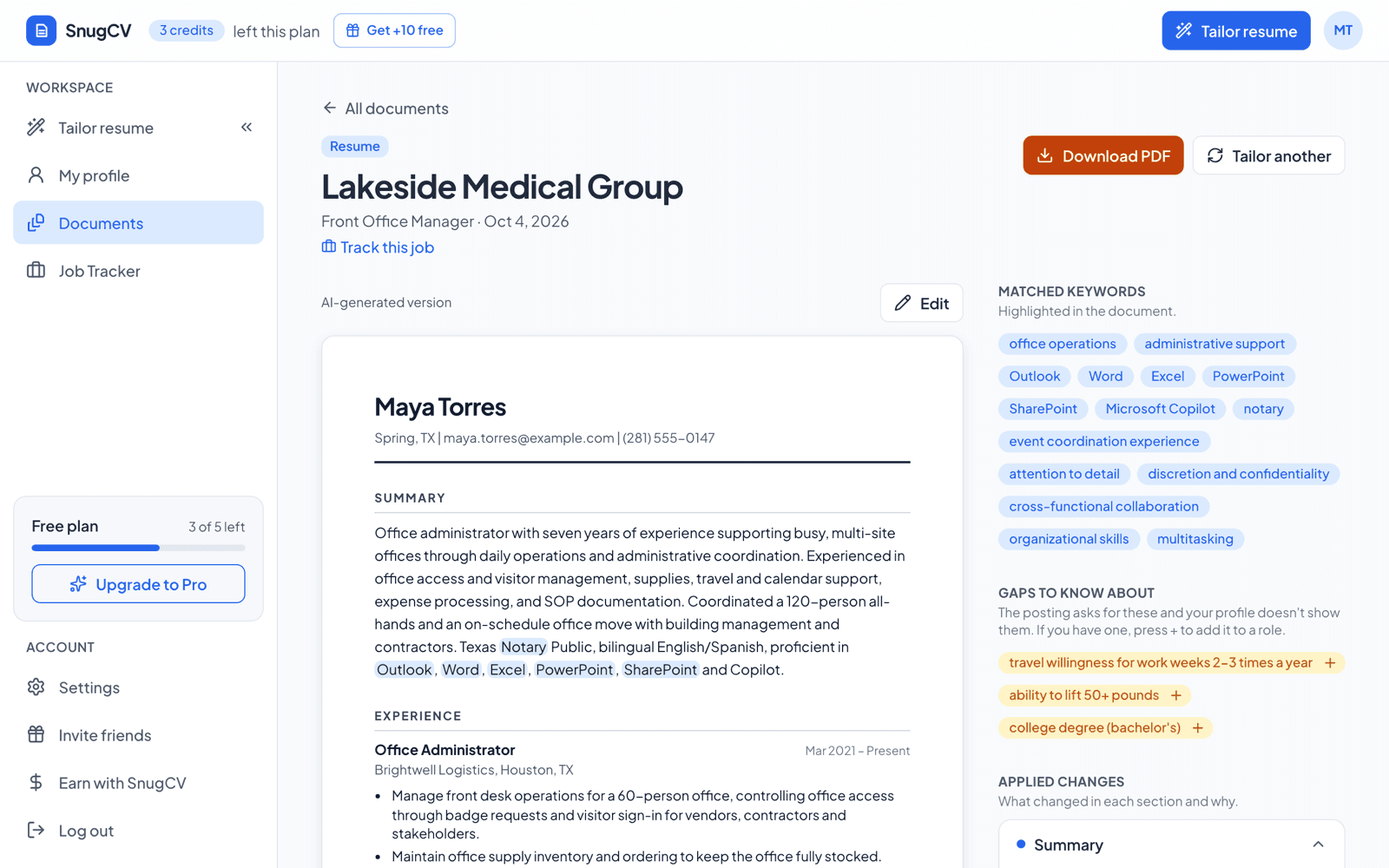
The document sits on the left. Above it you see the company, the job title and the date, a Track this job link that opens the entry in your job tracker, and a link to the posting when SnugCV has its address. The small label above the document reads AI-generated version until you edit it, and after that it shows when you last did. Download PDF and Tailor another sit at the top right.
The three panels run down the right side: Matched keywords, Gaps to know about and Applied changes. The gaps panel appears only when there is at least one open gap. A cover letter gets Matched keywords and Applied changes, and no gaps.
- 1
Summary
Read it aloud. Is every claim true?
- 2
Matched keywords
Compare the list with the posting's top requirements.
- 3
Gaps
Decide what to do about each one.
- 4
Applied changes
Check each note against your own history.
- 5
Each job
Read every reworded bullet in the document.
Matched keywords
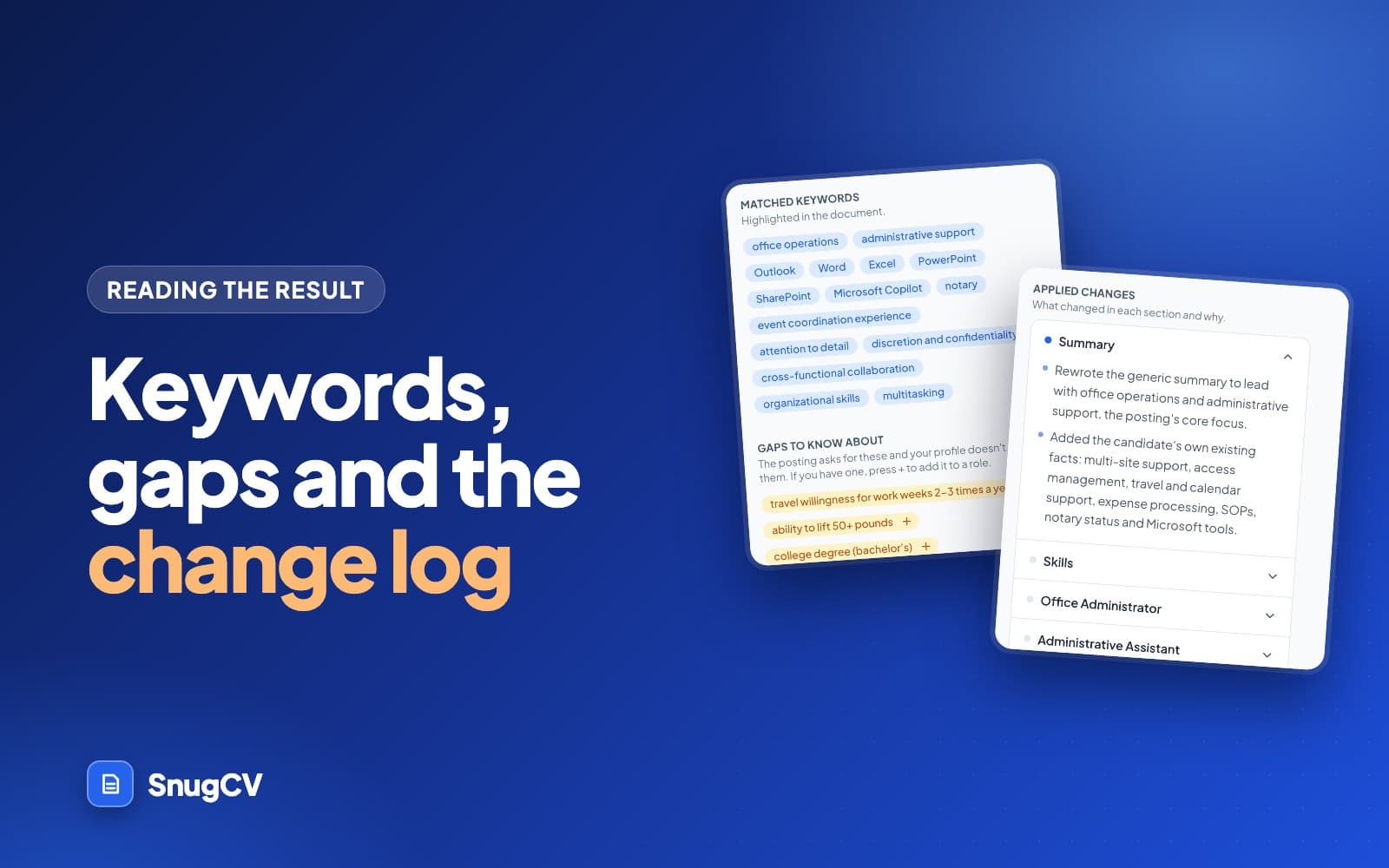
The first panel lists the words and phrases from the posting that appear in your resume. The same words are highlighted inside the document, so you can see where they landed. In the example, terms such as office operations, administrative support, Outlook, Excel and discretion and confidentiality are matched.
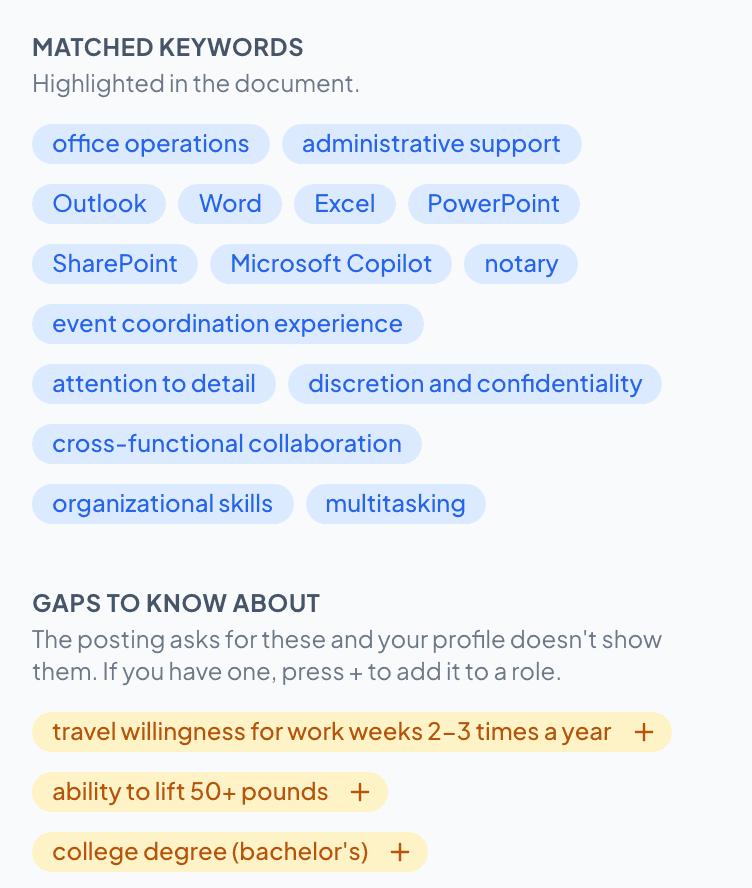
Use this list as a check against the posting. If the posting stressed something prominent and it is missing from the matches, look at the gaps panel next. If you are unsure which terms in a posting carry the most weight, how to find the keywords in a job description shows a method for sorting them.
How the highlighting works
Highlights are drawn by finding each keyword's exact words, ignoring capital letters, in the summary, the job titles, the bullet points, the skills and the certificates. Three things follow from that.
- A keyword can be on the list and not highlighted. The resume then says the same thing in other words, or the match sits in a part that is not highlighted, such as a company name or the education list.
- Highlights are for your eyes only. They do not appear in the downloaded PDF, and they switch off while you are in the editor.
- The Documents page shows how many keywords matched for each document. Use it to compare documents for similar postings. A short posting gives a short list.
| What you see | What it means | What to do |
|---|---|---|
| A keyword is listed and highlighted | The resume uses the posting's wording there | Read that sentence and confirm it is accurate |
| A keyword is listed but not highlighted | It matched in other words, or in a part that is not highlighted | Search the document for it if you want to see where |
| The posting stresses something that is not listed | Your profile may not show it, or may not show it credibly | Look in the gaps panel |
| The list is short | The posting is short, or your profile has little detail | Add detail to your profile and tailor again |
Gaps to know about
The second panel lists things the posting asks for that your profile does not show. In the example, the posting asks for a bachelor's degree, the ability to lift 50 pounds and willingness to travel. SnugCV does not pretend any of these are true. It tells you they are missing.
For each gap you have three honest options:
- If it is true and you left it off your profile, press the + beside it to add it to a role, then tailor again.
- If it is not true, leave it alone. Apply anyway if the rest of the posting fits you well.
- If it is a hard requirement you cannot meet, that is useful to know before you spend an evening on the application.
What the + button does
- Press the + beside a gap. A dialog asks which role you used it in.
- Pick the role. SnugCV drafts three bullets for that role: one hands-on, one about the outcome and one about working with others. New ideas asks for another set, and Change role goes back one step.
- Choose a draft, or write your own in the box. Replace anything in [brackets] with your real details.
- Choose Add bullet. It goes to the end of that role's bullets in this document, and the gap leaves the list.
The dialog reminds you to add it only if it is true for you, and that is the whole rule. The drafts are written to sound natural beside the bullets already under that role. They have no way to know whether you did the thing.
The new bullet goes into this document only. Your profile is unchanged. If the experience is real, add it to the matching job in your profile as well, or the next resume you tailor will list the same gap. How to upload your resume and build a reusable profile shows where.
A gap also leaves the list when its wording turns up in the resume, for example because you typed it into the summary or skills in the editor. When no open gaps remain, the panel disappears.
What kind of gap is it
Gaps are not all the same kind of problem. This table sorts the usual types, with examples from different fields.
| Type of gap | Example | What to do |
|---|---|---|
| A license or certificate | CDL Class A, RN license, forklift certification | If you hold it, add it to Certificates in your profile, and to the certificates list in the editor for this document. If you do not, check whether the posting accepts one in progress |
| A degree or years of experience | Bachelor's degree, five years in sales | Read the exact wording. Some postings say "or equivalent experience". Say so in a bullet only if it is true |
| A tool you have not used, where you have used a similar one | Epic, when you used another records system | Press + and describe the system you did use, by name. Do not name the one you did not |
| A duty you did under another name | Stakeholder management, when you ran weekly client meetings | Press + and write what you did in your own words |
| A physical or schedule requirement | Lift 50 pounds, travel up to 25 percent of the time | Not a resume matter. Decide whether you can meet it |
| A bonus | Bilingual a plus, familiarity with a tool | Leave it unless it is true |
Applied changes
The third panel is the change log. It has one entry per section, such as Summary, Skills and each job, and opens to a short note on what was changed and why. The first entry is open when you arrive, and you click any other to read it.
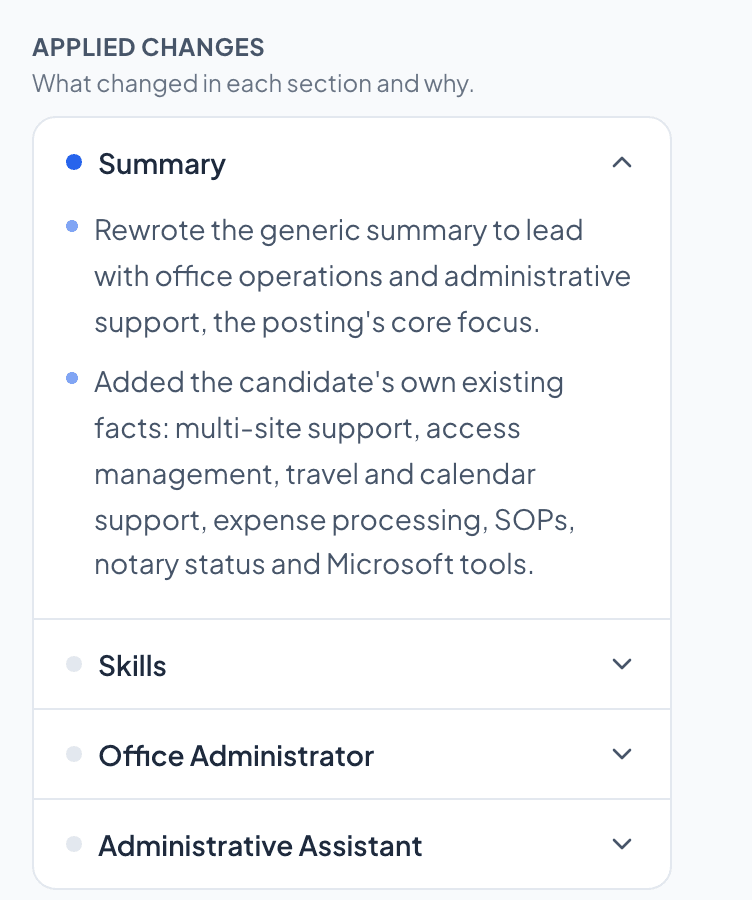
In the example, the Summary entry says the generic summary was rewritten to lead with office operations and administrative support, the posting's core focus, and that existing facts from the profile were added to it. Notes like this are how you check the resume against your own history. If a note describes something that is not quite right, edit it before you download.
A section with no entry was most likely left alone. If a job has no note, its bullets should be the ones in your profile, and a glance at the Employment tab will confirm it. That makes the panel a quick way to see which parts of the document deserve your attention and which can be skipped.
- 1
Shift Supervisor at Cobble Street Grocery
Entry
One entry per section that changed. For a job, the entry carries the job's title.
- 2
The opening and closing bullet now says reconciled tills and resolved customer complaints.
What changed
Compare the new words with what you did. This is where drift shows up.
- 3
The posting uses both phrases in its list of duties.
Why
The reason should point back to the posting. If it points to something that is not in your history, edit the line.
What tailoring can and cannot change
The summary, the order of your skills and the wording of your bullets are the only things that move. Everything else is copied from your profile by the system, which keeps the "nothing is invented" promise a mechanical one.
| Part of the resume | What tailoring does |
|---|---|
| Name, email, phone, location, links | Copied unchanged |
| Employers, job titles, dates | Copied unchanged |
| Education, certificates, languages | Copied unchanged |
| Summary | Rewritten for the posting, aimed at three or four sentences |
| Skills | Reordered by relevance. Clearly irrelevant ones may be left off. None are added |
| Bullets under each job | Reworded in the posting's language. Never more bullets than you wrote |
New facts come from you: through the + beside a gap, or by typing in the editor. The wording also follows two settings. Resume language writes the resume in the posting's language by default, and the tone setting, which is a Pro feature and off by default, adapts the voice. How to choose your resume template, font and section order covers them.
Check any line against your own history
The change log tells you what was done. Your history tells you whether the result is true. Three questions settle most lines.
- Did I do this, in this job?
- Could I talk about it for two minutes without notes?
- Does the line contain a tool, a number or a scope that is not in my profile?
Rewording can drift in small ways: a synonym that claims more than you did, or a tool named that you used once. Those are the lines to catch. Here are three examples, made up, from different fields.
Before
Profile: Opened and closed the store, counted the till and handled customer complaints.
After
Tailored: Opened and closed the store, reconciled tills and resolved customer complaints on the floor.
Check it. Counting a till and reconciling it are different jobs. If a manager reconciled it, change the line back to counted. Resolved depends on whether you had the authority to settle the complaint.
Before
Profile: Gave medications and charted vital signs for six to eight patients a shift.
After
Tailored: Administered scheduled medications and documented vital signs in the electronic health record for six to eight patients per shift.
Check it. Electronic health record is the posting's term. If your unit charted on paper, take the word electronic out.
Before
Profile: Loaded trucks, scanned pallets and kept the dock tidy.
After
Tailored: Loaded trucks, scanned pallets with a handheld scanner and kept the dock clear and safe.
Check it. A handheld scanner is a tool detail. If you used a fixed reader or a scan gun of another kind, say what you used.
You reject a change by editing the line back to the wording you prefer. Revert to AI version goes the other way: it discards your own edits and restores the version SnugCV generated, so it will not undo the rewording itself.
Three example reviews
All three are made up, from different fields, and show what a two-minute review can produce.
Matched: cash office, complaints
Retail shift supervisor
The matched list showed till reconciliation and customer complaints. The gap was keyholder. They had held keys at the last store, so they pressed +, picked that job, and edited the draft to say they opened and locked the store. They also changed one bullet from reconciled back to counted.
Gap: Epic
Medical scheduler
The matched list showed scheduling, insurance verification and patient confidentiality. The gap was Epic, a system they had not used. They added one bullet naming the practice management system they did use, and left Epic out of the resume.
Gap: forklift certification
Warehouse associate
The posting required a forklift certification, and the gap list showed it. They held one that was missing from the profile. They added it to Certificates in the profile and in this document's editor, then downloaded the PDF.
When something looks off
| What you see | Why it happens | What to do |
|---|---|---|
| Few or no highlights | The posting was short, or the resume uses other words for the same things | Check the matched list. If it is also short, paste the full posting and tailor again |
| A skill from my profile is missing | Tailoring may leave off skills that clearly do not apply to the posting | Type it back into Skills in the editor, or leave it |
| The resume came back in another language | Resume language is on auto-detect, which follows the posting's language | Change Resume language in Settings and tailor again |
| The gaps panel is missing | It only shows when there is an open gap | Nothing to do |
| A name, date or title is wrong | Those are copied from your profile | Fix the profile and tailor again, or fix this one document in the editor |
| A note describes something that is not quite right | The note says what was done, and you disagree | Edit the line in the editor |
Tailoring again makes a new document and uses a credit on the free plan, so fix the profile first if the problem is in it. SnugCV credits and Pro lists what uses a credit.
What to check before you send
- Read the summary aloud. Does it sound like you, and is every claim true?
- Scan the matched keywords against the posting's requirements.
- Look at the gaps and decide what to do about each one.
- Open the changes for each job and confirm the rewording still says what you did.
- Read every reworded bullet once as the interviewer would, and ask what you would say if they picked it.
- Check that your name, phone and email are right, since they are copied from your profile.
When you are satisfied, edit and download the PDF, or track the application. If you want a letter to go with it, how to write a tailored cover letter shows how to make one, and resume bullet points goes deeper on the lines you are about to read.
Questions people ask
What are matched keywords?
Words and phrases from the posting that your resume now contains. They are highlighted in the document and listed on the right, so you can see what the resume answers and where each term landed. They come from the posting's own wording, which is why they read like requirements rather than like your usual phrasing.
What does a gap mean?
A gap is something the posting asks for that your profile does not show. Treat it as a prompt to check whether you have that experience and just never wrote it down. If you do, you can add it. If you do not, the gap is information about the job, and you decide whether to apply anyway.
Can I reject a change?
Yes. Open the editor and put the line back to the wording you prefer. The change notes tell you what each edit was, so you know which lines to look at. Revert to AI version works the other way: it throws away your own edits and restores the version SnugCV generated.
Does a longer list of matched keywords mean a better resume?
Not on its own. A short posting produces a short list, and a long one produces a long list. Keywords matter because they reflect real experience that the posting asks for. A resume stuffed with phrases you cannot explain does you no good in an interview, so read the lines, not the count.
Why is a keyword listed but not highlighted in the document?
Highlighting looks for the keyword's exact words in the summary, job titles, bullets, skills and certificates. A keyword can be on the list because the resume says the same thing in other words, or because it sits in a part that is not highlighted, such as a company name. The list is the better guide to what matched.
What happens when I press + beside a gap?
A dialog asks which role you used it in, then offers three draft bullets for that role. You pick one or write your own, replace anything in brackets with real details and add it. The bullet goes into that document only and the gap leaves the list. Your profile is unchanged, so add it there too if it is true.
Why is a skill from my profile missing from the resume?
Tailoring orders your skills by relevance to the posting and may leave off ones that clearly do not apply to it. It only ever uses skills from your profile and never adds one. The skill is still in your profile, and you can type it back into the Skills section in the editor if you want it on this resume.
Was this guide helpful?
Get the free resume checklist and new guides
Twenty checks to run before you send a resume, as a one-page PDF. After that, a short email when new guides go up, at most once a week.